Updated: May 24, 2021
Ah, Windows 10. The neverending story. Several weeks ago, I had my first upgrade of 20H2, on a test machine. It went well. Several days after that, I did another upgrade, on a production machine. It went well NOT. Windows had decided to alter about a dozen different settings I had put in place, and thus lower my IQ by about 20-30 points.
This prompted me to go on a purification spree, toggling off yet more and more options and settings in Windows. In a way, I'm grateful for these moments, because they remind me I must stay vigilant. Like the Assistant issue in Android, until that point, I was tolerant or indifferent of various settings, but once the aggressive sales nudge came my way, I decided to disable tons of extra stuff. Same here. Indeed, in this guide, I want to show you a few more things you should consider disabling in your Windows 10 system, because they contribute nothing to your productivity or efficiency.
Get more from ... not interesting
The one thing that really pissed me off was the post-login, pre-desktop blue screen (not BSOD) that you see, and it asks you to enable all sorts of online/cloud things, as though these supposedly can somehow enhance your desktop experience or whatever. I've seen these before, and then just clicked Skip. Tolerated, you see.
Now, there was no Skip. Not this time. There was Remind me in 3 days instead. I figure, oh no. Enough is enough. I'm not putting up with this low-IQ turdology any longer.
Cloud begone
Ere you read onward, you should take a look at the following two articles as your baseline for the work here today:
- My Windows 10 privacy guide - some of the stuff has changed, like duh, but it's a good starting point.
- My Windows 10 essential post-install tweaks - this tutorial builds on the previous, plus it has a lot more new stuff, as it's based on my latest endeavor with a Windows 10 system, just a year or so back.
All right, so what I decided to do is the following:
- Disable any suggestions and nudges through Settings. The problem is, I had already done this before, but Windows 10 decided to randomly turn some of this nonsense back.
- Just to be on the safe side, I also went through registry and disabled the equivalent settings, to make sure nothing "surprises" me.
- I fired up Group Policy (Pro edition) and under Cloud Content, turned on the three policies that disable the cloud integration stuff. Because there's only so much nonsense one can put up with.
Now let me show you the actual steps to do this.
Notifications in Settings
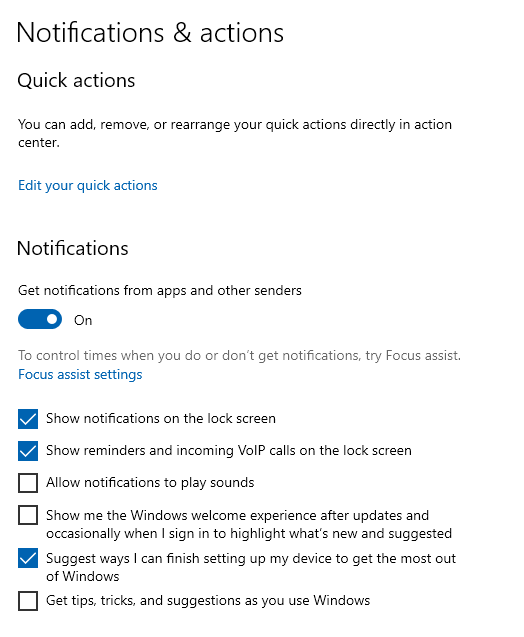
Open Settings > Notifications & Actions. There will be six checkboxes under Notifications. Then, unselect the fifth one "Suggest ways I can ..." This should handle it. Along the way, you can disable the rest of the noise, if you haven't already.
Registry tweaks
Next step, navigate to:
Computer\HKEY_CURRENT_USER\SOFTWARE\Microsoft\Windows\CurrentVersion\
ContentDeliveryManager
And here, make sure the following DWORD exists, and is set to 0:
SubscribedContent-310093Enabled
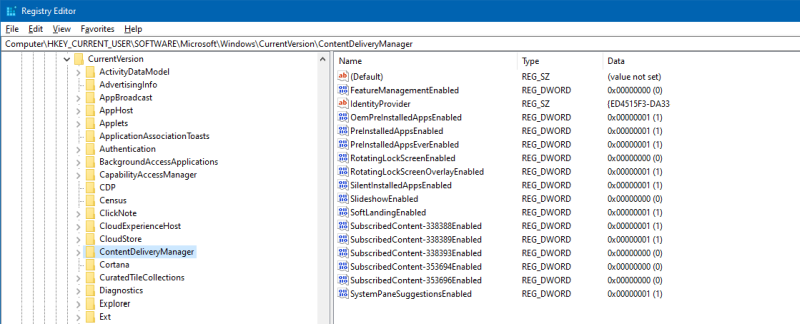
Optionally, make sure SilentInstalledAppsEnabled and SystemPaneSuggestionsEnabled are also set to 0. No stupid games, no stupid popups telling you what to do. Also, note the other Content DWORDs, they correspond to the Notification checkboxes under Settings we just saw earlier.
Cloud Content
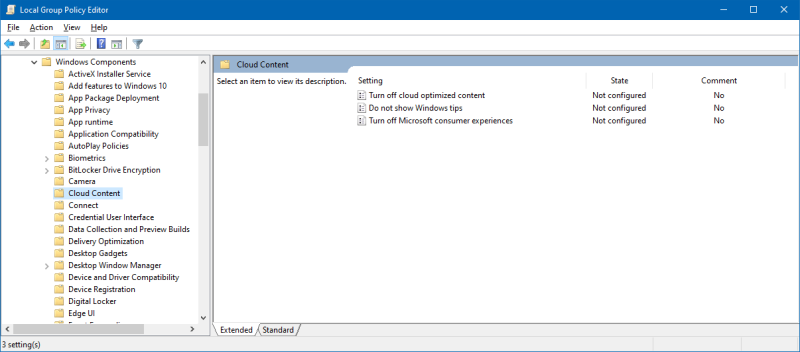
Finally, some more peace and quiet. Open Group Policy Editor, go to: Computer Configuration > Administrative Templates > Windows Components > Cloud Content. Here, in the right page, click on each of the three policies shown, including:
- Turn off cloud optimized content
- Do not show Windows tips
- Turn off Microsoft consumer experiences
Set them to Enabled. In this case, the word Enabled refers to the policies not their content. So by enabling the policies, you effectively disable the annoying behaviors outlined in the description.
Results
And there you go. As Norm MacDonald would say, that's the problem with modern medicine. But now with these tweaks in place, I will no longer be offered any pre-desktop nonsense, no taskbar nudges, nothing.
A small bonus side effect of the above neutering is that the desktop is, believe it or not, ever so slightly sprightlier than before. Part of this is placebo, and part less unnecessary computation that serves no purpose than turn your professional product into a marketing bonanza. Nope. Business is business. I paid for the product, leave me alone. Want more? Pay me instead. That's fair trade, innit.
Conclusion
Another sad articles comes to its end. I am never happy writing these guides slash rants, but they are an unfortunate must in this modern world, where the user is nothing more than a speck of vomit in a torrent of useless content. The bizarre, bi-polar nature of Windows 10 never ceases to amaze me. You get some top notch stuff, like EMET or Exploit Protection, and then you get these happy-go-lucky we-are-the-world nuggets of Dystopian salesy depression, in the same product.
For now, I feel moderately confident that I've completed the purge, the culling and the exorcism. This would be a third or fourth round of tweaks, it seems. Now, hopefully, I shall never again have to contend with useless, unproductive stuff, and be able to focus on real work, and getting things done, as I used to be able to, once upon a time, in the golden days of the Windows desktop. Me out.
Cheers.