Updated: March 11, 2009
This is a most wicked idea: to be able to run Linux applications on top of your Windows desktop, without bothering with partitioning, dual-boot configurations and other stuff normally involved in running multiple operating systems! If you like this concept, then you must try andLinux.
More about andLinux ...
You must be wondering what andLinux is like. Well, it's very different from many other software solutions you have seen so far: You can think of andLinux as a desktop integrated virtualization. On one hand, you have a complete operating system running emulated on top of your Windows. On the other hand, you can run individual Linux applications just like any other program in Windows, outside the virtualization sandbox. In this regard, andLinux is somewhat similar to VMware Unity.
So you have virtualization (thick and thin) and emulation blended into a crossbreed. Lots of things bunched together. You must be thinking andLinux is hard, don't you?
It is not. Configuring and using andLinux is rather simple, no different than installing any other Windows application. You won't have to bother with partitioning your drives, altering the boot manager or any other dreadful task. It takes nine mouse clicks and less than 5 minutes of your time. Follow me. Let's see how we can setup andLinux and enjoy Linux fun on our Windows machines!
Installation
I'm going to show you two installations, one using the more spartan, more difficult settings oriented at more experienced users, one using the simpler configurations that should well suit the less computer-savvy. In both cases, I will use the minimal XFCE version. If you have the time and space, you may want to try the sexier, beefy KDE; we'll see that one, too. In all cases, andLinux uses the Ubuntu 7.10 Gutsy Gibbon as the underlying Linux platform.
Download the version the like and then begin the installation. The installation is rather conventional. However, there are some things you should pay attention to:
Memory Size
You'll have to dedicate a part of your system memory to andLinux. In general, the more the merrier. XFCE is rather light and will work well on lesser settings. KDE is hungrier and will want more. I recommend 384MB and 512MB, respectively. If you can allocate even more, then fine.

Sound
If you want to use sound in Linux applications, then you need to enable it.

Startup Type
Now comes the tricky part. You have five options, with the first being the most difficult one and the last the simplest one:
> start andLinux manually in a command prompt + use XFCE Panel
If you choose this option, you won't have any context-menu options available on your desktop, nor there will be an icon in the system tray. andLinux will run as just another program.
> start andLinux manually in a command prompt + use Windows shortcuts
If you choose this option, andLinux will run as an application, but with the added benefits of shortcuts for your convenience.
> start andLinux manually as a NT service + use XFCE Panel
This option allows you to start andLinux as a service, promising better stability. You will have to start/stop the andLinux service alone and powerup the andLinux system.
> start andLinux manually as a NT service + use Windows shortcuts
As above, with shortcuts to help you use the application.
> start andLinux automatically as a NT service + use Windows shortcuts
This is the most convenient option. andLinux will run as a service at startup and you'll have shortcuts on your desktop, Quicklaunch and in your context menu, as well as a System Tray icon, allowing you to more easily access and control andLinux.
We will begin with the third option and then use the last one, to see the differences between the two setups.

Sharing (Windows File Access)
Another tricky one. You have the option to share your files and folders using either CoFS or Samba. CoFS stands for Cooperative Linux (coLinux) File System and is much simpler to configure. Samba requires proper credentials and permissions to use.

If you choose CoFS, then you merely have to select the folder you want to share. That's all. Very simple, friendly and recommended.

If you choose Samba, you'll have to work a little harder. I must admit that I did not successfully manage to configure andLinux to use Samba. The Samba configuration files all seemed to be in order, the Windows sharing and security settings all seemed to be in order, but I could not get the Windows shared directory to be seen inside andLinux.
Although the testing of the configuration belongs in a later section of this article, I find it necessary to inform you of the potential difficulties you may encounter. Even the andLinux installation guide warns you of the snags you might hit if using Samba.

Nevertheless, there's no reason to be afraid. Even if you botch something, you can always reinstall and fix the errors.
Additional tasks
This section will differ depending on what you've selected under Startup Type. If you've chosen any of the options WITHOUT Windows shortcuts, you'll get this wizard:

If you've selected the option with the Windows shortcuts, then you can also choose the context menu options:

This more or less completes the installation. You'll have to reboot.
Using andLinux
Our more difficult option was to run andLinux manually, as a service. Therefore, to get it started, we you'll have to do two things:
- Either via the Start Menu or through the folder where you've installed andLinux, run the andLinux service startup script (srvstart.bat).
- Start andLinux by running startup.bat.

Once andLinux starts, you'll get the XFCE panel on your desktop!


Now you can start enjoying andLinux.
For instance, here we have Firefox running! Notice that it is the Linux version and not the Windows version.


Install programs
You can also run Synaptic and download programs that you need!


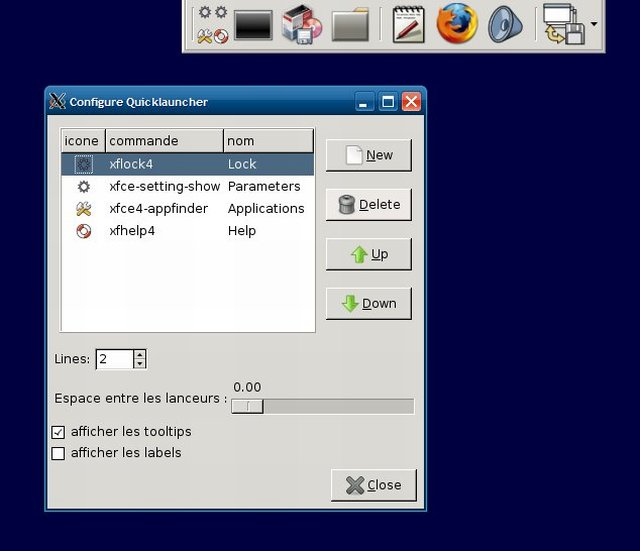
After you install new programs, you can configure the XFCE panel to include custom launchers. For an unknown reason, bits of the XFCE panel configurations and options are written in French.
Run applications
Notice the freshly installed DOSBox:

And here we have the DOSBox and XMMS player running happily inside Windows:

File sharing
Here comes the tricky part again. Using Samba renders no good results. However, CoFS is a breeze. It's as simple as opening the file manager twice against the same directory, except one runs in the Windows explorer and one in Thunar.

Start andLinux automatically + shortcuts
If you've chosen the last option, then you'll have a few more goodies at your disposal. One is the greater convenience in running and managing andLinux.
andLinux will manifest as a black-and-white yin-yang in the System tray:

And you can also have shortcuts for Thunar and the command line in your Quicklaunch - the last two icons on the right. And if you're wondering, NO, this is NOT Vista, it's XP using Embedded Theme.

Context menu
Another highly useful feature:

Downsides
andLinux has a few issues that you should consider:
- andLinux offers no security. The communication between the host and the Linux applications is unencrypted. Furthermore, anyone using the Windows machine has access to andLinux files.
- Some programs would not install. I've encountered a few problems with unsatisfied dependencies when trying to install applications via Synaptic. This could be due to the fact that andLinux uses an older version of Ubuntu (7.10) as its platform.
- andLinux is based on coLinux, a Linux-in-Windows implementation that is quite cumbersome and rather unstable for everyday use. Some of the complexity and instability of coLinux has tricked into andLinux. I experienced occasional crashes that were quite difficult to interpret and solve.
- andLinux offers little choice what Linux distro the user can run. coLinux allowed users to choose their own images, but was too unstable for daily use. Changing the setup requires quite a bit of knowledge and is not guaranteed to work. This means that users will have to depend on the developer to release updates, both to the Ubuntu platform and potentially other distros.
A few KDE shots ...
You may also be interested in the bigger, heavier KDE.
The KDE version requires 4.5GB to install and will not run will on meager RAM settings, so you should have a rather powerful machine to run this one. The installation is also slightly different, offering fewer choices when it comes to how you wish to run andLinux and more context-menu and shortcut options.

After the installation, you have a wide range of K goodies to run and enjoy:

For example, here's the KWord running:

And here's Konqueror:

Compared to the Xfce version, KDE was definitely slower and there were a few visual glitches here and there. On the other hand, it offers lots of excellent, reliable programs that you can happily use on top of your Windows desktop.
Conclusion
All in all, andLinux is a very handsome, appealing solution for many Windows users. It is quite simple to configure and run. You will be able to enjoy your favorite Linux programs without altering the physical setup of your machine. andLinux can also be used to teach hesitant and inexperienced Windows users their first steps in the Linux world.
On the other hand, users are limited in their ability to choose the distro and packages they want to use. Occasional crashes and missing dependencies preventing certain Linux applications from installing mar slightly the untarnished image andLinux offers.
Lastly, there's the issue of support. To make andLinux a credible solution for masses, with rock-solid stability and plenty of distros to choose, lots of hard work is required. I hope the developers will be able to meet this rather difficult goal. But I can tell greatness when I see it. andLinux definitely has it. I shall be watching this project closely.
Cheers.