Updated: July 30, 2006
In a world dominated by Windows operating systems, migrating to Linux sounds a daunting task. Apart from the basic questions of getting used to a whole new and different world of computing, there is a question of functionality. How capable will be a new Linux user? Many Internet sites are poorly coded so that only Internet Explorer users can view them properly. Most of the software market (mainly the home sector) is severely biased toward Windows applications. Will the new Linux user be able to retain the full flexibility of choices like in Windows?
Well, the answer is ... maybe. The newer Linux distributions are becoming more and more flexible and home-oriented, coming bundled with a variety if highly useful packages that are intended to make the Linux experience as complete and painless as possible. Nevertheless, some things will always remain purely Windows-only and no amount of improvisation will be able to help. Most of the games market is oriented toward Windows. Most online banking sites seem to be IE only.
To address this problem, Linux programmers have come with a variety of programs that allow a sort of patching and virtualization, enabling partial support for Windows applications. Unfortunately, most of these solutions do not really work. Running pieces of Windows separately does not work as well as the complete operating system. So, instead of "hacking" individual executables and DLLs to make them run in Linux, why not run Windows in Linux?
Why not indeed?
I consider being able to run Windows in Linux is an important achievement. One, it grants an empowering feeling of geeky accomplishment. Second, for Linux doubters, this is one more reason why you SHOULD consider using Linux. If the lack of compatibility for your favorite Windows application has been a major obstacle till now, it is no longer so.
How did I do it?
Again, I must praise the superb VMware products that allowed me to do this. But let's take this one step at a time. I'm going to write down a full guide how I successfully managed to configure VMware Server in SUSE Linux and then install Windows as a guest operating system with full network access. Hopefully, you will be able to reenact my feats.
I should add that I have successfully installed VMware products in several distributions, including Ubuntu and PCLinuxOS. SUSE Linux is just one of the many distributions that will allow you to do so. Alternatively, you can also use VirtualBox, an open-source virtualization solution similar to VMware Server. But this guide focuses on SUSE + VMware Server. Here is the list of things that you need to do:
- Install SUSE Linux on your computer (physically; NOT as a virtual machine).
- Download VMware Server for Linux.
- Install VMware Server for Linux.
- Carefully configure all of the little options to make sure there are no conflicts with other software.
- Start VMware Server and install Windows XP (or any other, for that matter) as a guest operating system; for more details, you can refer to my Installing Windows XP article.
Install SUSE Linux
Please refer to my Installing SUSE Linux article for step-by-step instructions.
Download VMware Server for Linux
You will need to register to be able to download the VMware Server. After registering, you will receive the software serial number through email. After that, you will have to agree to the software EULA before you will be able to download the necessary files. After you complete the above steps and reach the download page, you will need three packages:
- VMware Server for Linux (either .rpm or .tar.gz).
- VMware Management Interface (tar.gz).
- VMware Server Console included inside VMware Server Linux client package (.zip).
Installation
Follow the instructions in VMware Server Beta 3 Release Notes step by step. Linux instructions are located half down the page. Every step is documented thoroughly and precisely, in detail. No special hacking knowledge is needed. Just read carefully and execute each command line in turn. Although the Release Notes refer to Red Hat Linux, this works flawlessly for SUSE.
You may be overwhelmed by the amount of information on the page, but do not panic. Here are some simple rules that you should follow:
- For each of the packages mentioned above, you will first need to extract the tarballs and then run a configuration wizard to set everything properly. You will need to be logged in as root (su) to do this.
- Once you run the configuration wizard, use the default settings for files, folders or ports. This will help you debug possible troubles later on. Most how-tos will offer solutions based on the default configurations.
- On several occasions, you will be asked to designate a subnet of IPs for VMware network adapters. Let the wizard find the adequate unassigned ranges by itself. Make sure all your network connections are plugged in while you do this so that the wizard will see the IP ranges that would normally be reserved for your ISP or local network and skip them. If you are using a DHCP server (if you use your SUSE machine as a router or similar), you will have to manually add the subnet ranges to avoid conflicts.
- You will need to assign a directory where your virtual machines will be stored. Try not to assign a folder on /root partition but rather on your /home partition. This will prevent possible access permission conflicts and unnecessary clogging of the system partition. You should dedicate a sufficiently large hard disk space for your virtual machines.
Run VMware Server
To start VMware Server, execute the following commands in a terminal window:
cd /usr/bin/
vmware
If you have done everything carefully, VMware Server should start.

Now, it was time to install Windows. So I built myself a virtual machine. VMware Server can do it for you, but you can also use EasyVMX! and QEMU. Please refer to my VMware Player - a great friend article for more details.
In the home window of my VMware Server, I opted to run an existing machine. I located the .vmx file, located inside my virtual machine folder, and ran it. The Windows XP virtual machine started booting from the CD and I was on my way to install Windows XP.
Windows XP
Half an hour later, I had my XP alive and kicking, safely caged inside SUSE. Here's the familiar Windows XP desktop:

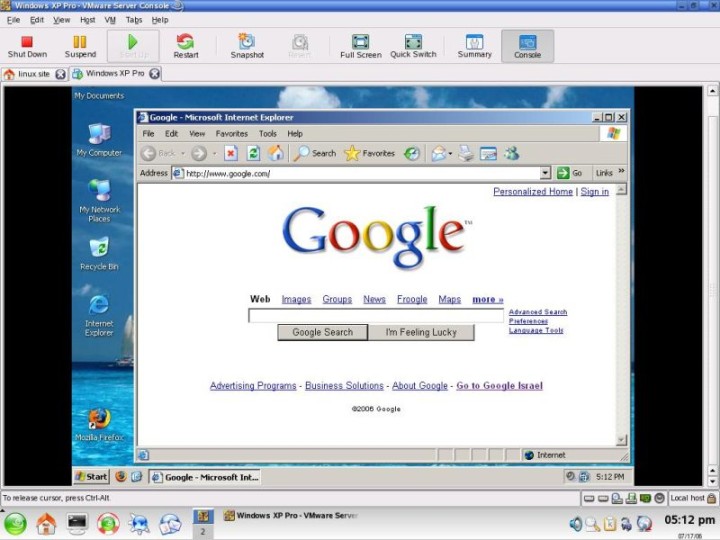
Here's the Internet Explorer 6 SP2, live and kicking inside Linux:
Of course, I had to install Firefox (plus some extensions):
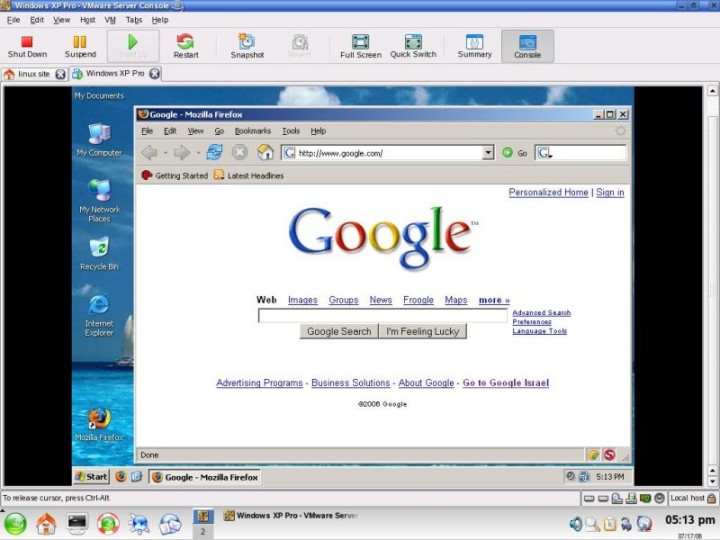
Hard to believe, eh? But here I was, running Windows in Linux. The feeling of accomplishment that I feel is very sweet. Using Linux is far more rewarding than I could ever possibly imagine. The little tricks make all the difference.
It's up to you now. With a bit of luck and the right choice of graphic card manufacturer, you will be able enjoy full network support (Internet, LAN), full 3D acceleration, VMware Server, and Windows XP with Internet access, without any conflicts or bugs, all running smoothly on your SUSE Linux machine. Throw in a printer as a bonus (Hewlett Packard has drivers that work for both HP AND Lexmark in Linux, go figure), and I doubt you will ever need to look back again. Have I convinced you yet?
Links to SUSE forums:
SUSE Forums - The Global SUSE Community
Links to VMware Server forums:
VMware Server Discussion Forums
VMware Server Discussion Forums - VMware Server
Cheers all.