Updated: May 20, 2026
Let's say you're a Linux or a macOS user. Let's say you have a need for Windows programs, still, for whatever reason. Your choices are to either run a full Windows virtual machine or try a compatibility layer tool like WINE or CrossOver. If you've read Dedoimedo over the years, then you've studied dozens of articles on these topics, on how to accomplish your cross-platform software goals. But I never talked about related security that much.
Technically, the risks from running Windows software on Linux or macOS are lesser than if you do that natively, but there could be some, after all. As a general rule, you shouldn't run anything you don't trust, regardless of the platform. However, if you must, there are still some nice ways to somewhat restrict the Windows software, so your underlying host is less exposed. Following on my recent CrossOver review, I'd like to focus on this program, and the functionality it offers for some rudimentary security. After me.
The basics
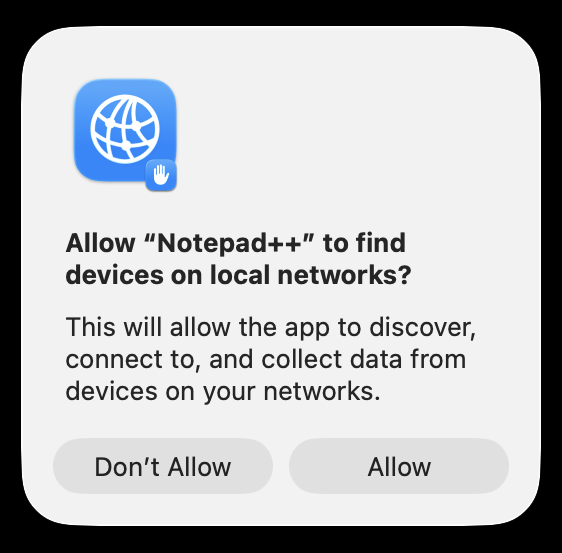
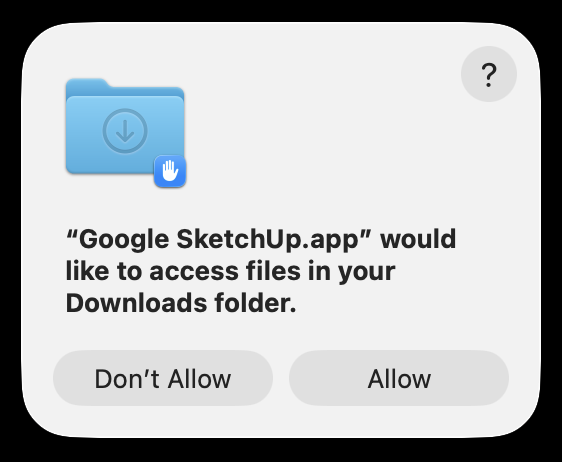
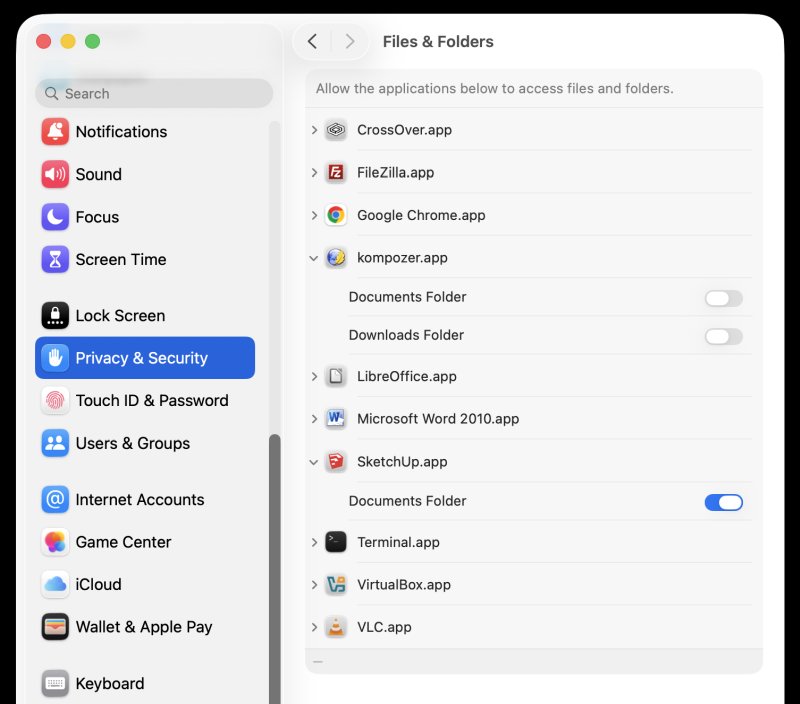
Let's start with operating system level functionality. It will vary from one host to another. In Linux, for example, you may not really have any built-in allow-deny mechanism for your storage locations, but you will usually have a firewall of some kind, in and out. MacOS will only let you filter incoming connections with its built-in firewall, so you will need additional software to control outbound traffic. Then again, in macOS, the system's security mechanism, Gatekeeper, will ask if you want to allow certain programs to access certain resources. And then, in Settings, you can always tweak that. CrossOver programs will be listed alongside native ones.
Network access
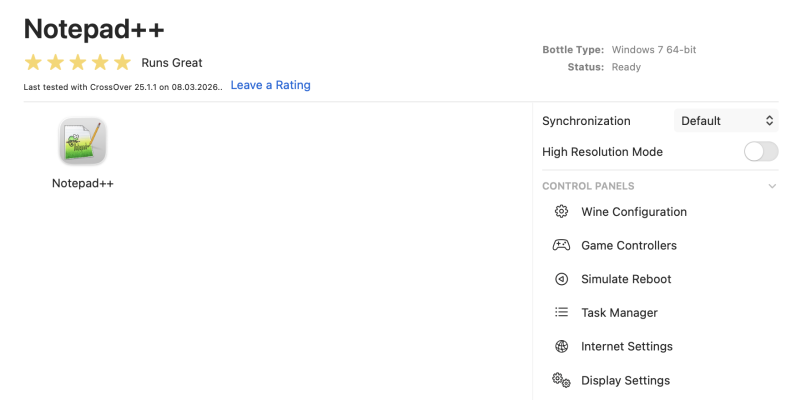
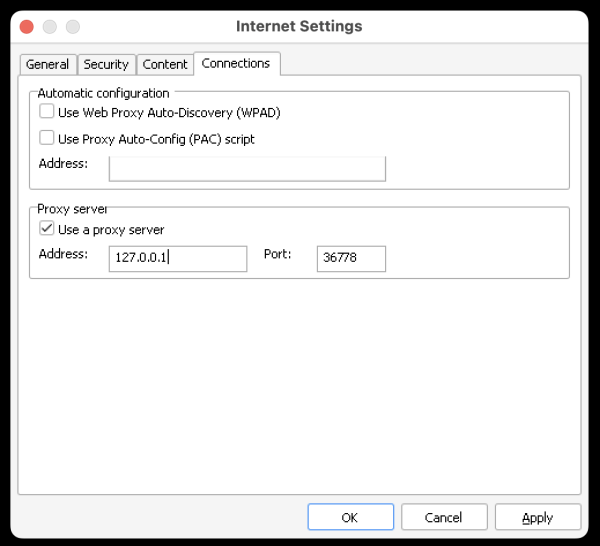
Now, regardless of what the underlying host platform offers, you can use the built-in network options by clicking on Internet Settings for any one selected CrossOver program in the sidebar on the right side. In turn, this will invoke the ancient Internet Settings menu from Internet Explorer.
Here, on the Connections tab, you can set a non-existent network proxy. You can use localhost with any which port, for instance 127.0.0.1, port 36778. If the specified program uses the Internet Settings page for its network configuration, then it won't be able to access the Web anymore. But this will work if and only if the program relies on these settings. Please remember that.
Disk access
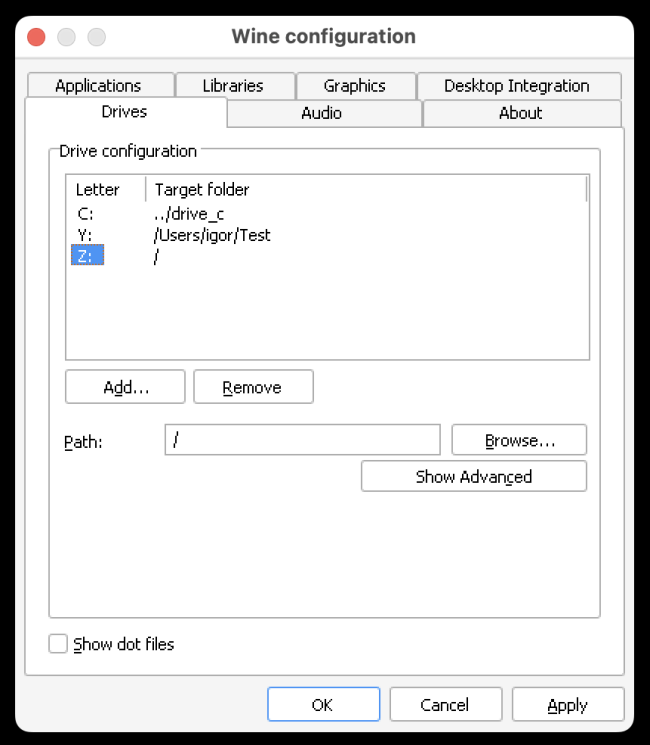
Here, you have a bit more control. By default, WINE and thus CrossOver will mount two devices into each and any Bottle. You will have C:, the drive into which the program will be installed, and Z:, which will map to your actual root. Click on Wine configuration in the sidebar, then on the Drives tab. This also applies to WINE, and you can reach this via winecfg.
Here, you can unmount or add any path you like. For existing paths, select it in the list, then click remove. If you want to edit the path, simply change whatever's shown in the Path field below, or browse for a new location, and then click Apply. When you click Add, choose a drive letter (like say G: or Y:), and then choose or manually write the desired path. In my example below, I added /Users/igor/Test as the Y: drive. I could also remove Z:, or perhaps change it to something like Downloads.
Restrict files
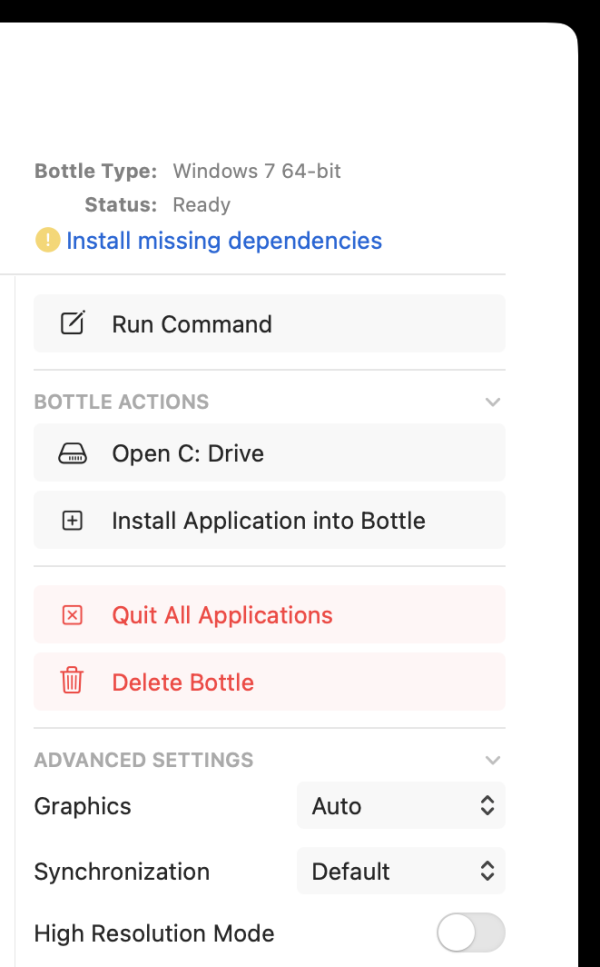
The last thing you can do is disable certain files for certain programs, especially if you know they might be troublesome. Thus, find any executable you don't like, and change its extension from EXE to say OLD. Under Bottle Actions in the right sidebar, click on Open C: Drive. Navigate to the desired folder, copy, delete or rename files as you see fit. Of course, if you neuter the main program, it won't work, duh.
Conclusion
There you go. Running Windows software in Linux or macOS shouldn't pose much risk. But you can still reduce the low risk further by some small security mitigations, most notably disk access and possibly network access. In macOS, the system will prompt you for resource access anyway, but do take into account that Gatekeeper seems to work only for default folders, so if you create any others outside of the defined tree, you might not see any warnings. Furthermore, you might actually need a proper firewall to truly and fully restrict network for your Windows software. Most importantly, if you don't trust the program, don't run it, that's the best security.
CrossOver offers some rather useful tools in this regard. Using its UI, you can set up proxy, add and remove drives (and drive paths), and even change contents of any of the installed Bottles, so that the software behaves as you expect. By and large, this should be more than enough for casual, ordinary use. Furthermore, programs are isolated from another, so that's another bonus. If you do have truly high-risk software, though, then there are better ways of using it than CrossOver. You might want to consider virtualization, with snapshots. Anyway, hopefully, you find this article useful. Take care fellas.
Cheers.