Updated: April 17, 2026
In all my years using non-Windows operating systems, I never had a dire need to buy CrossOver. In Linux, I managed doing things the "hard" way, with WINE and lots of manual changes and hacks and whatnot. My best examples are probably the SketchUp & white windows article and Notepad++ guide, as they combine lots of interesting bits and pieces, including plugins, add-ons, weird compatibility, and then some. You may also like my Pharaoh city building guide. All of this work was done using freebie tools. But I never managed to get Microsoft Office to run, and I left it at that.
Recently, though, there's fresh impetus for me to do this. One, I don't want to use Windows 11. The old '10 will keep on running for a while, and with an offline virtual machine or two, my Office needs are sorted. Two, I got myself a Macbook Pro, and I decided to try to make a full transition, in earnest. But I'm talking a pragmatic transition. This means still using familiar programs. To that end, I decided to test and install CrossOver. And this be a review.
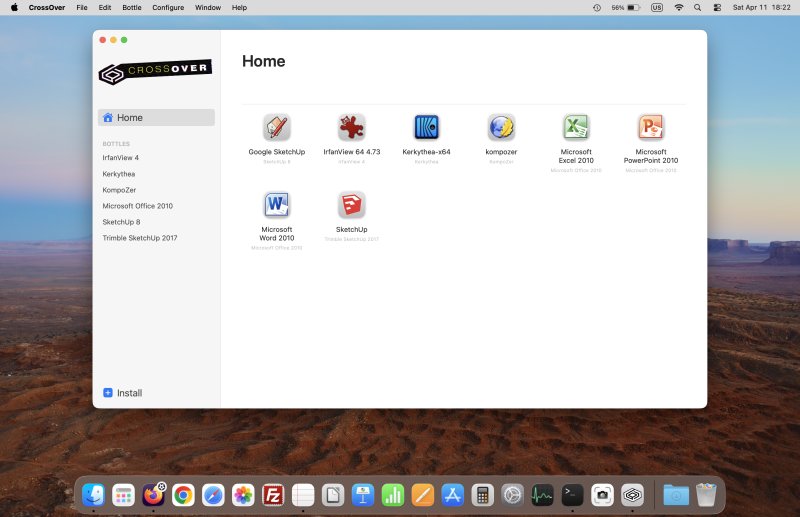
Thirty seconds on CrossOver
CrossOver is a commercial product for Linux and macOS, allowing you to run Windows software in a relatively simple way. In other words, it's like WINE, only easier for common users, plus you might get some extra compatibility here and here. In a way, it's all connected. Steam Proton, WINE, CrossOver. Nice.
You can buy a lifetime license of the program, or use a cheaper annual subscription model. Normally, I'm against any sort of subscriptions for products, but here, if I'm not mistaken, you don't really lose functionality come the one year end, you merely not get any additional updates or new features. Either way, you have two weeks with to make up your mind.
I downloaded the trial version for macOS and got underway ...
Setup, first steps
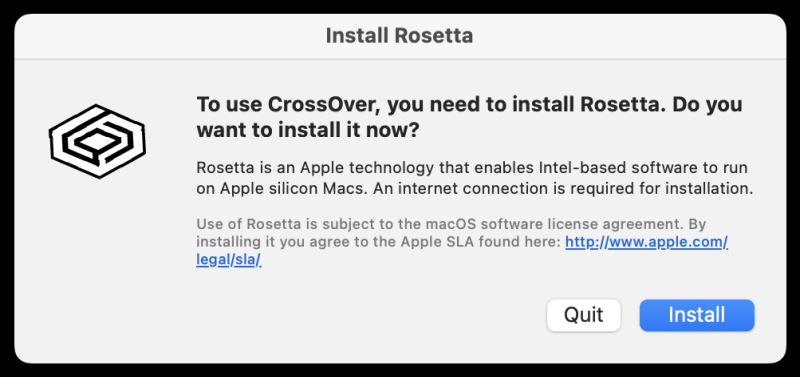
The installation is simple, and you get a prompt to configure Rosetta, which lets you translate Intel architecture code (x86) to ARM. Basically, an emulator, but one made by Apple and offering good performance. Cool beans.
Once I was done with the installation, I started dabbling. By default, CrossOver gives you an overview of popular programs, but you can also use the search field to look whether your desired program has an installation template.
Some programs may have one or more templates. For example, Office 2010, for which I had a very keen interest, has separate installation templates for the bare version and the subsequent Service Pack. You get the expected compatibility rating, and you can choose whether to use the "known" existing installer online or your own offline setup file. Right away, I did encounter some problems.
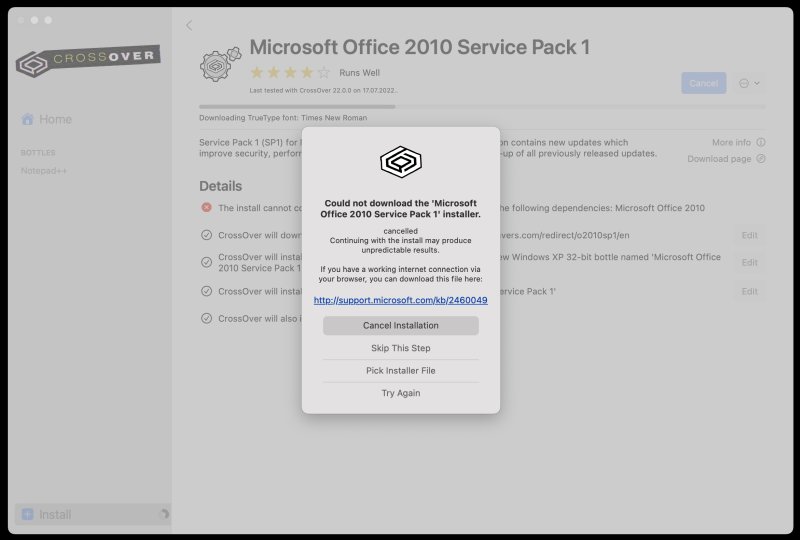
For Office 2010 SP1, the online installer wasn't available. The compatibility for the program was last checked in 2022, which means four years for Microsoft to shuffle things around. Luckily, I had the offline installer available, but you might actually encounter a problem where you have a valid license but you won't be able to find the actual setup to run. Now, this is just the intro. Let's actually go into fine details and see what gives.
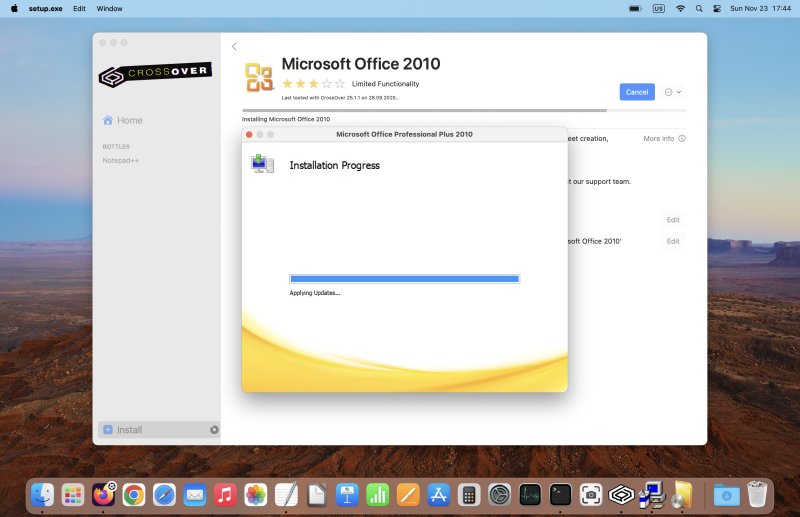
Office 2010 setup
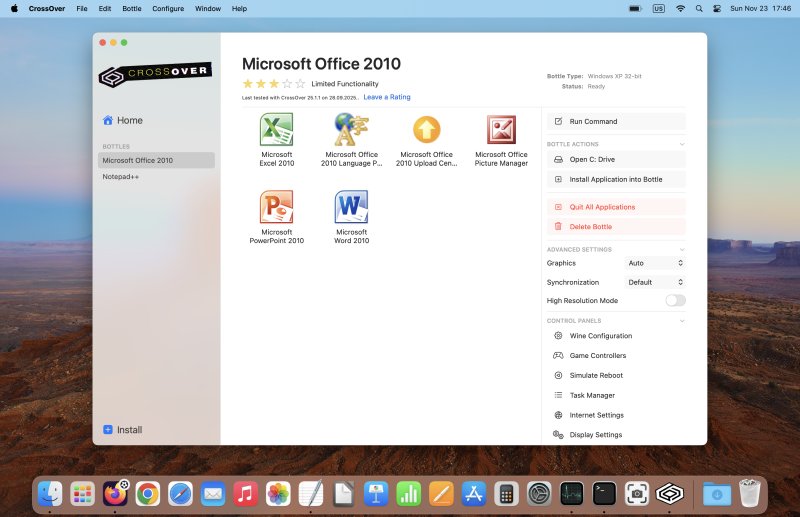
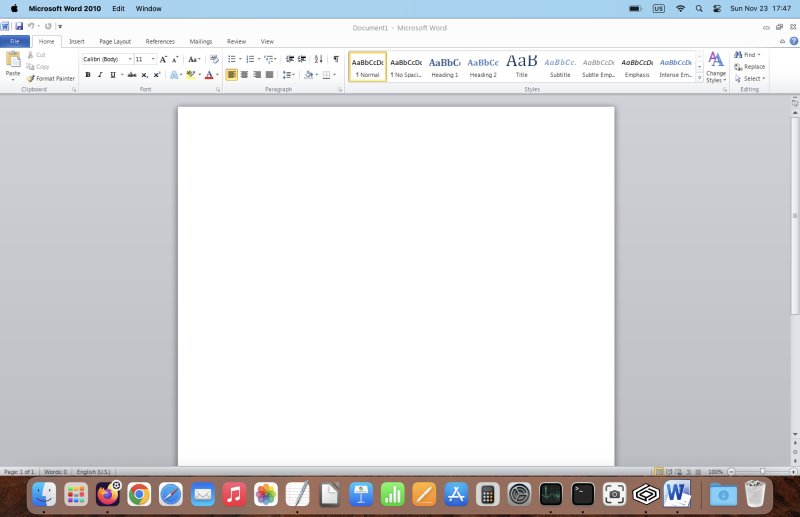
This actually worked well. It took a while, but I had the suite installed! And working!
Notepad++, KompoZer, IrfanView
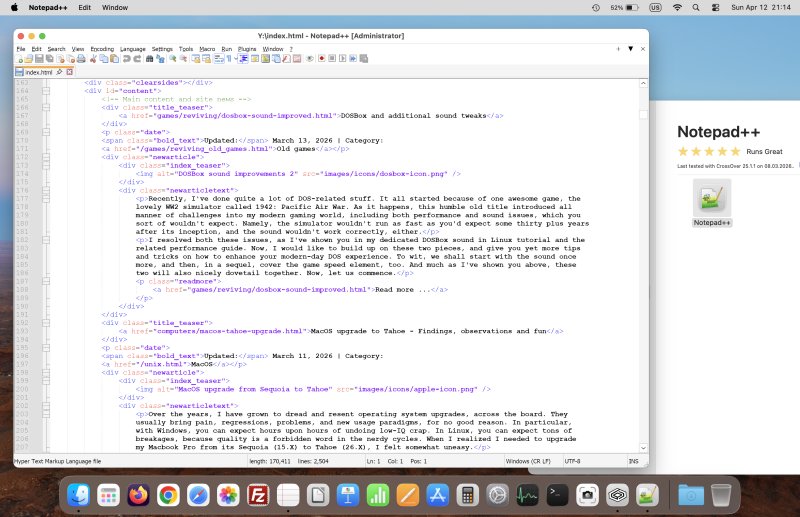
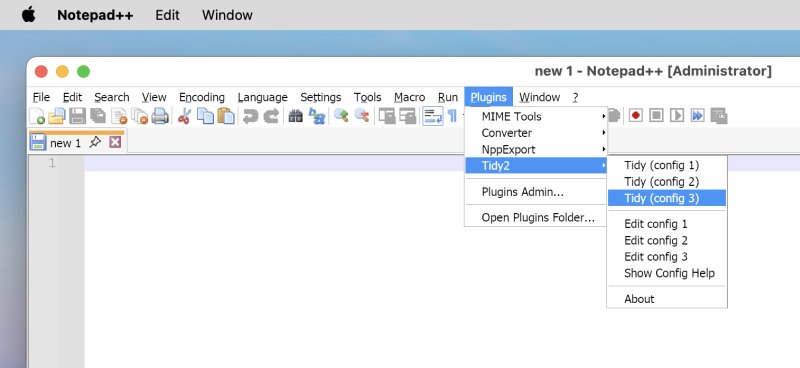
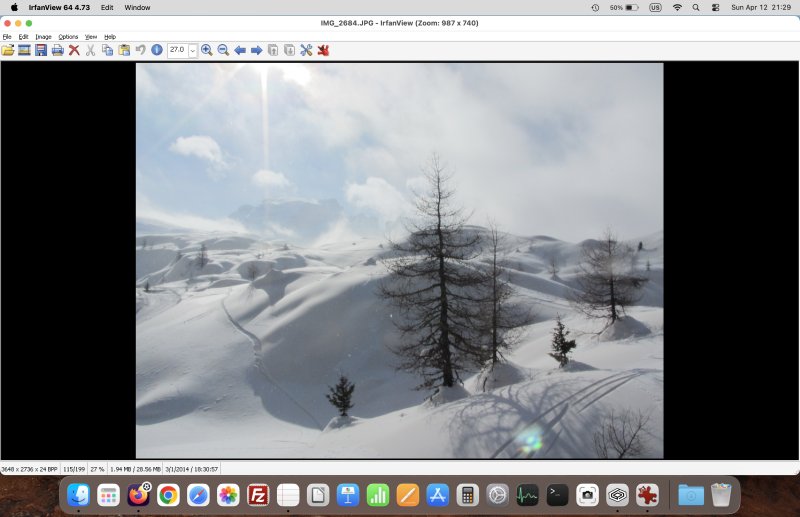
These programs never caused me any issues in Linux, and their WINE setup had always been super easy. Same here. For KompoZer, I simply grabbed the folder that contains the entire program build, and told CrossOver to use this as a "new" application. No issues.
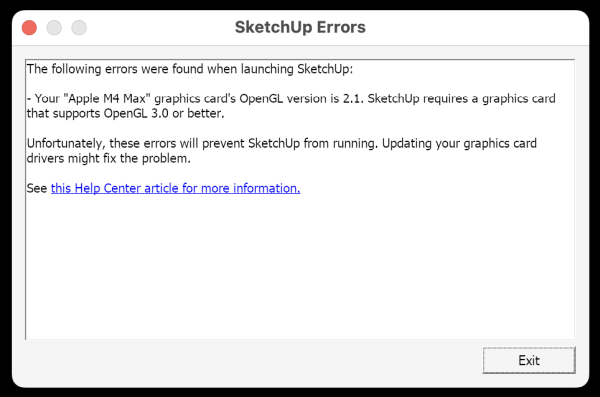
SketchUp (Make 2017)
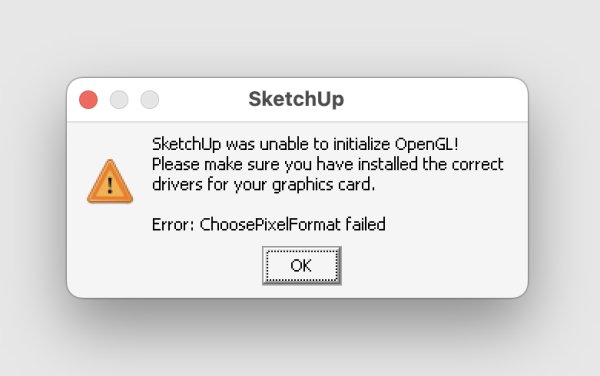
This one didn't work well. Yes, I managed to install it, but it wouldn't run, complaining about the laptop's graphics. It does make sense, because SketchUp needs graphics acceleration and all that, and at that time, there was no Apple M Silicon. But some sort of compatibility shim should be in place, if possible. Or perhaps this level of machine instructions translation isn't part of Rosetta. I am still somewhat hopeful there's a neat workaround available, but so far, no luck.
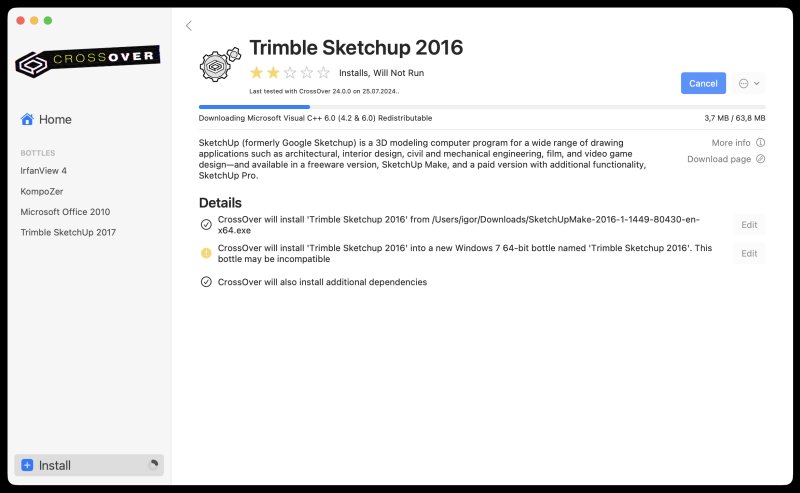
SketchUp (Make 2016)
Next, I decided to try the one-year-older version. This is the last edition that lets you toggle OpenGL 2.1 in the settings, and/or disable/enable HW acceleration. Now, eventually, I got to the launcher, but then the program wouldn't start. It would always crash.
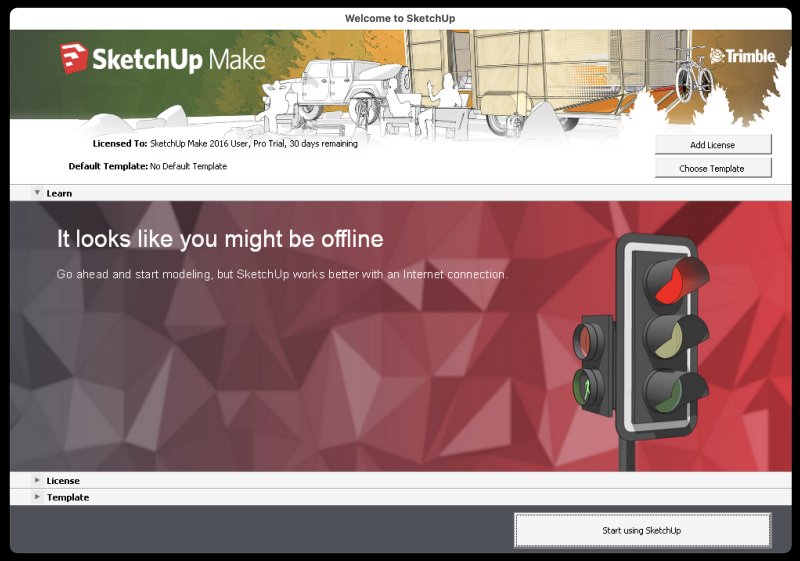
SketchUp 8
Here, we have the good ole program. It installed fine. And it wouldn't run either, until I opened regedit and changed a registry key. You may be wondering how to do this. I will expand on this a bit later. But yes, this worked, and I was able to launch SketchUp! Finally. Not only that, I was also able to add the Kerkythea toolbar, so I could export my models for rendering. Great success, very nice.
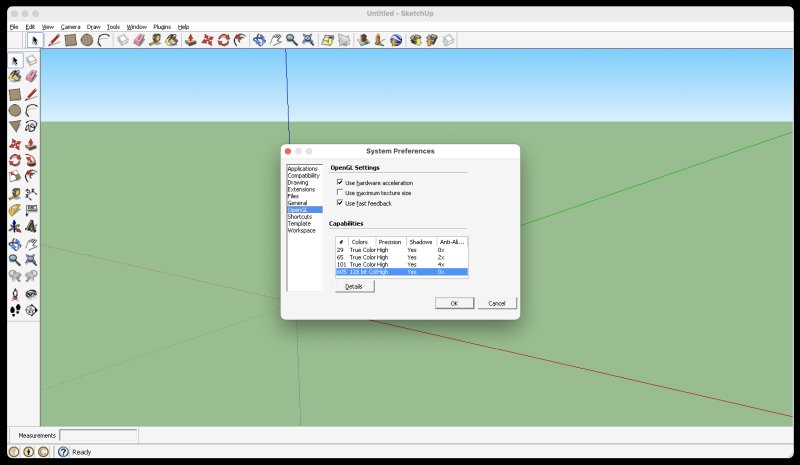
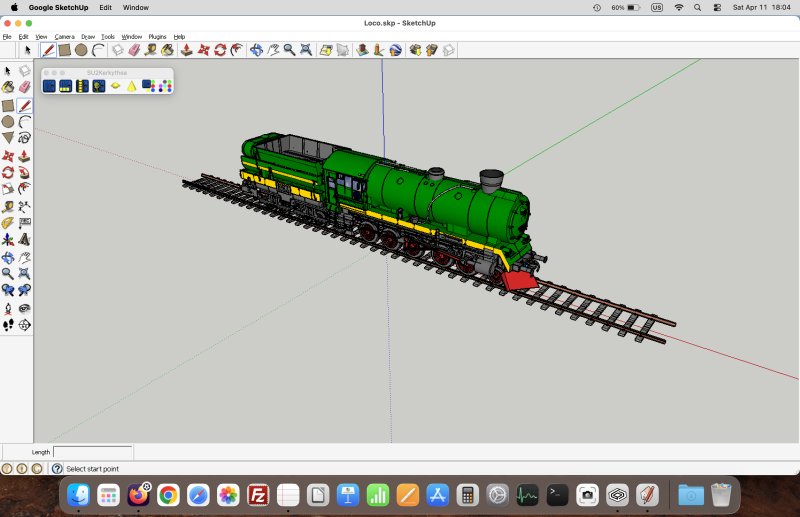
The performance is average, because you don't really have any true graphics acceleration. If you're ok with this, you can use SketchUp, but don't expect any miracles. It's already a miracle to even have it running in the first place. But I shall explore and report on.
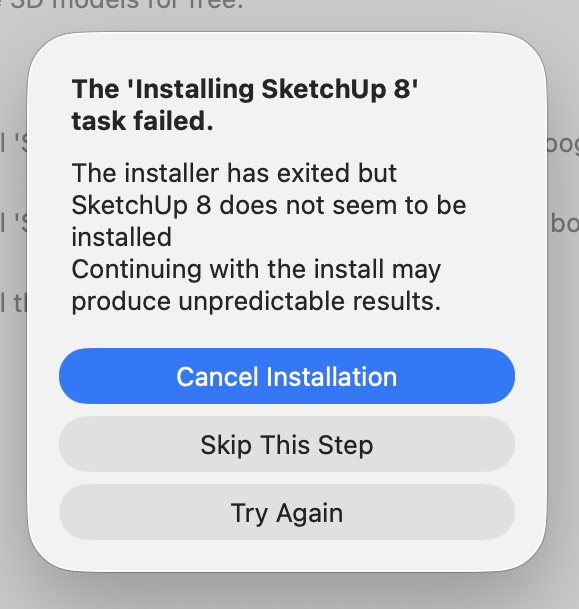
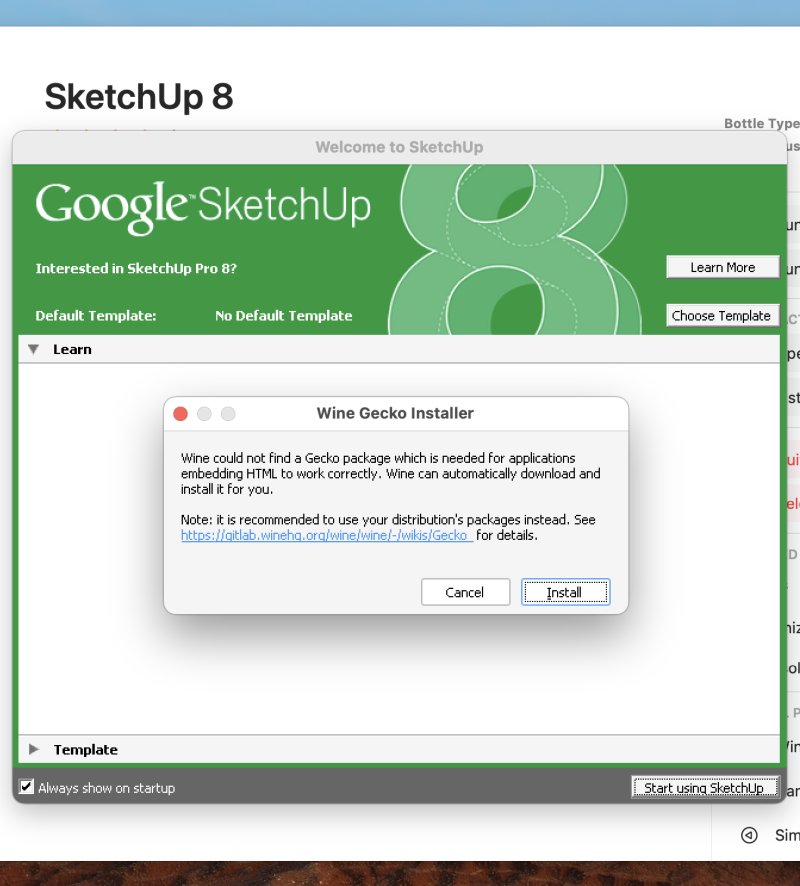
Just so you know, there were a few snags. CrossOver or macOS thought the installation may have failed, but it didn't. The launcher got stuck because there was a Gecko dependency waiting to be installed. Y'know, the same sort of prompts you get to see in Linux.
Kerkythea (Echo Boost)
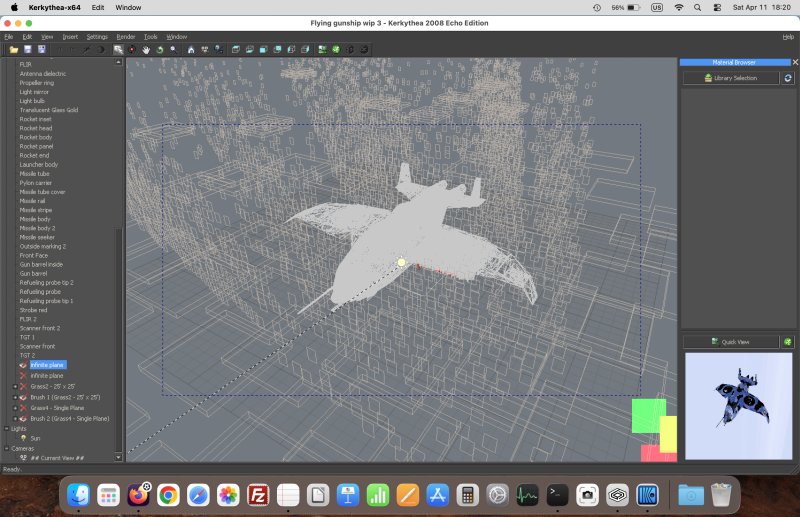
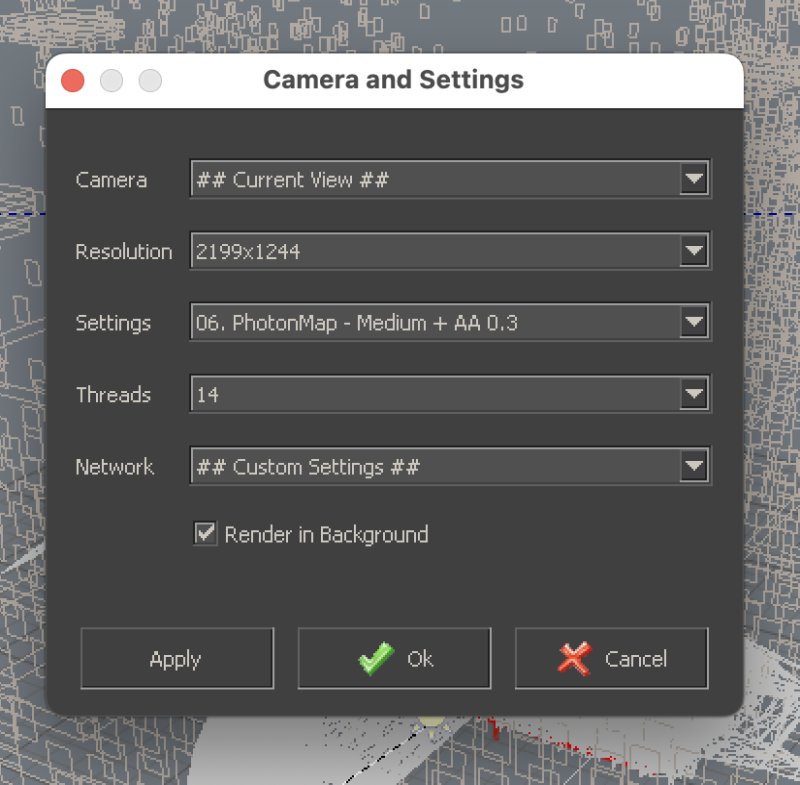
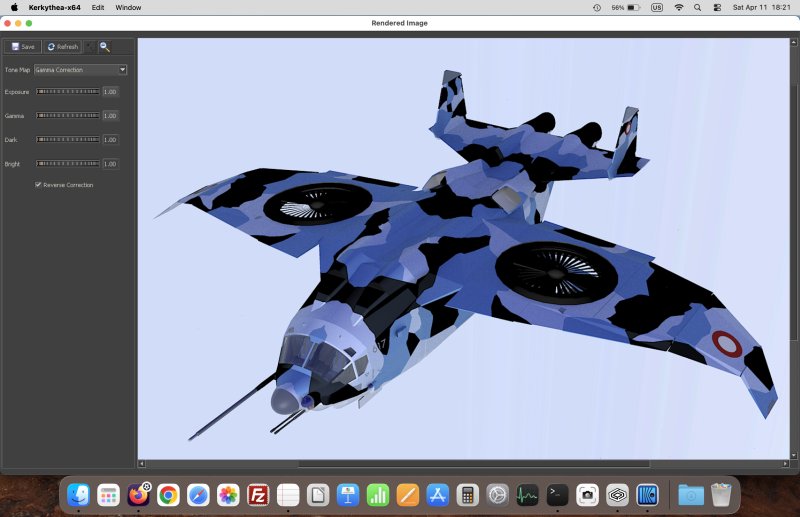
This old rendering program worked just fine. Plug 'n' Play. Like with KompoZer, I simply pointed to the binary, and CrossOver imported the entire thing. All my materials and all that. It also correctly identified the CPU and its fourteen threads. Very nice. And much as I did in Linux, I had to change the model materials paths, e.g.: replace stuff like E:\Models\Whatever to /Users/Igor/Library/Application Support/Crossover and such inside the model XMLs. After that, everything was peachy.
High Definition mode
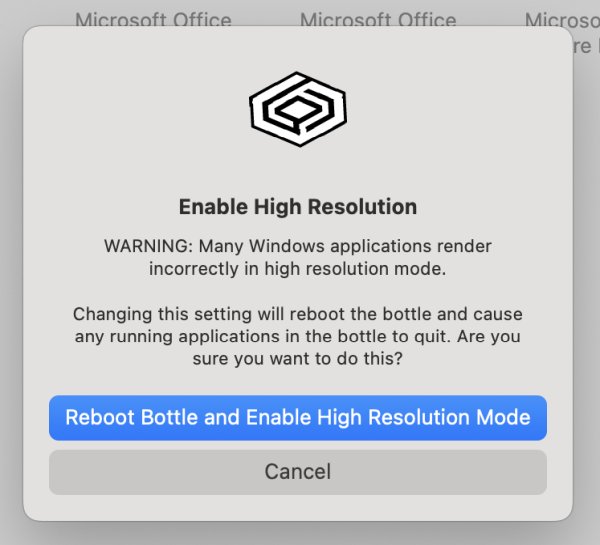
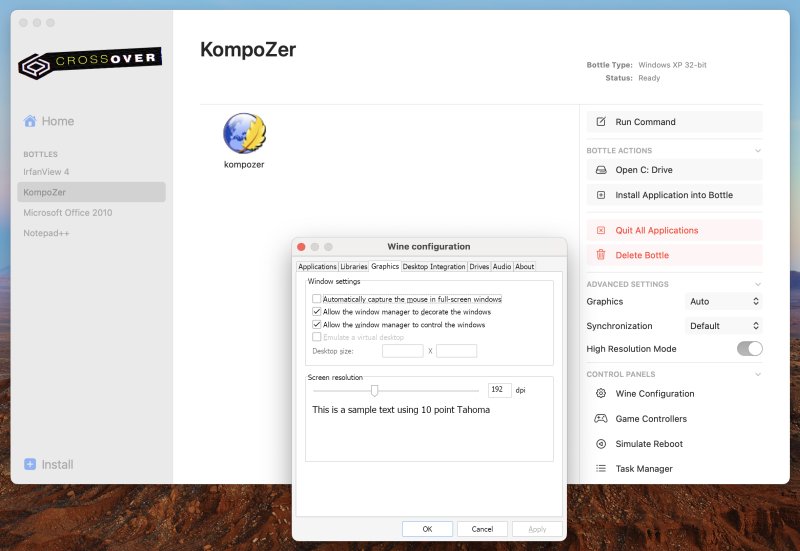
If you want to experiment, you can play with each program's settings. Remember, it's mostly WINE in the backend, and you can even launch the standard winecfg utility. You can also use the HD mode, which is somewhat similar to what I've shown you in my own namesake HD guide. Technically, you'll end up with a high DPI configuration, usually 192, which means double the standard density. This can help make things prettier.
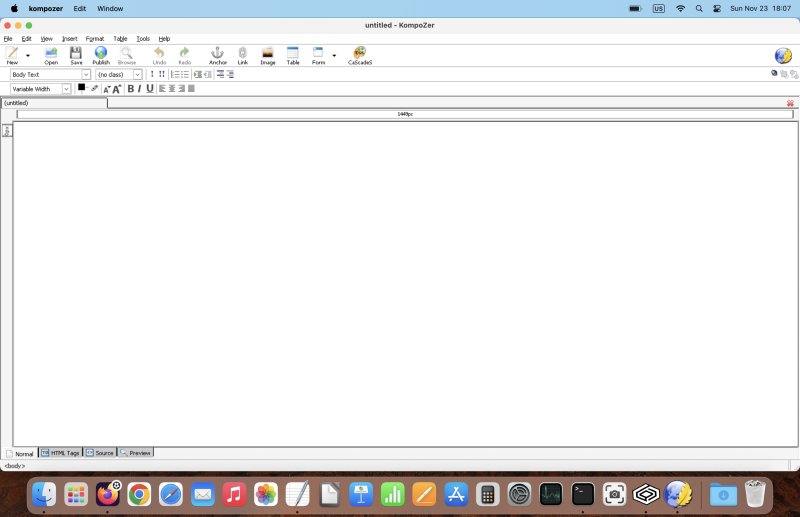
On the other hand, in some cases, this can lead to unpredictable results or degraded app performance due to weird rendering on the screen. Basically, you win some, you lose some. For instance, KompoZer worked fine, whereas it actually did have such problems when I applied a similar trick manually in Linux. Here, though, the UI was smooth and fast. And remember, it's x86 code emulation. Doubly nice.
The old KompoZer, at your pleasure:
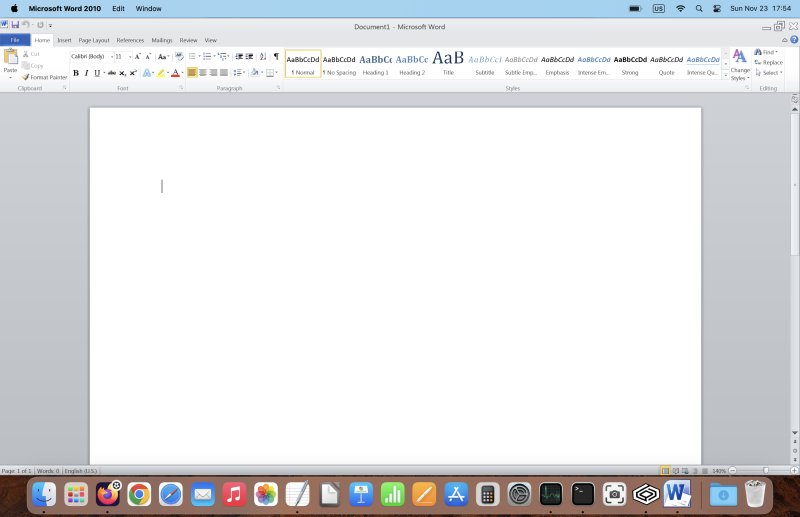
Also, Office 2010 looks really nice this way:
However, some programs didn't cooperate. SketchUp and Kerkythea do not like this mode. Now here, I had much better results in Linux with WINE. On my various Linux systems, I'm using the 192 or 216DPI setting, and things look fine. It could also be the question of x86-to-ARM compatibility, or perhaps the graphics adapter glitches.
Tweaking program options
But you can do more than that. You can browse each program's C: drive, and each one has its own separate filesystem. Indeed, CrossOver will configure new applications and games into individual Bottles, which are equivalent to WINE prefixes, as I showed you in my Pharaoh article. You can also manually play with the WINE configuration, add or remove DLL overrides, run specific commands and then some.
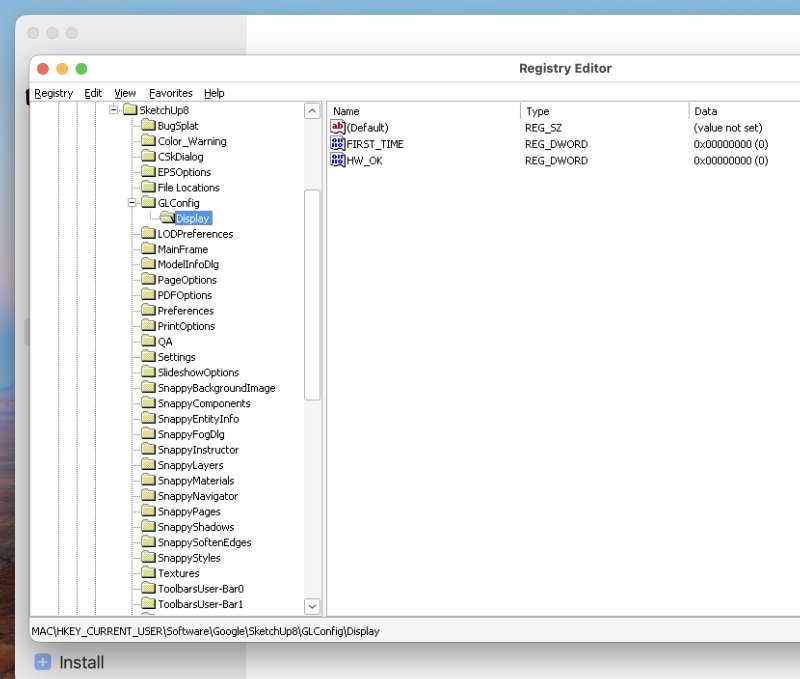
Let's examine the SketchUp 8 example. So I needed to tell the program to skip the hardware acceleration check, so it wouldn't bug me about it. Click Run Command. In the command field, type regedit. This will launch the WINE-powered regedit for the specific Bottle, and now, you can navigate the hives and make necessary changes. In my case, I navigated to:
HKCU\Software\Google\SketchUp8\GLConfig\Display
And here, I changed HW_OK from 0 to 1. Job done.
Now, there are some security aspects to CrossOver and Windows programs, but I would like to discuss them in a separate piece.
The future?
I read a couple of articles online that Apple intends to retire Rosetta at some point. This brings up an interesting question. How will that affect CrossOver? I guess it will also affect Steam and Proton and whatever the equivalent functionality is used on macOS. Well, not something that I need to worry about right away, but it could potentially jeopardize my desire to have a fully independent move to macOS (on Apple Silicon, that is). On the other hand, I don't think I can, nor do I want to, leave the lovely x86 ecosystem behind for good. Linux does a decent job there, and as I've shown you in my Slimbook Titan articles, you get the full plethora of games and programs, including many of the examples shown above.
Conclusion
Having used CrossOver (for Mac) for several months now, I can say the program works well. I think the Office functionality alone justifies the price. It is WINE indeed, a bit friendlier, wrapper in a much nicer GUI. You get a lot of cool options and features, and so far, of all the different WINE frontends I've ever tried, this one both looks and functions better than the rest of the bunch. But there are snags and problems, and the nerdy nature of the product does come out now and then.
When things work, awesome. But when they don't, you may find yourself tinkering with the WINE configuration, trying all sorts of tricks. The installation recipes are usually tricky, as they contain lots of outdated information, mostly pointers to nonexistent setup files. The usual Internet rot, right. Furthermore, the compatibility testing dates are often ancient, three, five or more years, which isn't a lot in human years, but considering the hectic, ever-changing nature of the software world, well.
Still, all that said, CrossOver is a good, solid program. It does allow me to run most if not all of my classics and oldies on macOS. I guess Rosetta deserves its praise, too, for superb performance, because really, you wouldn't know your x86 code is being emulated, except when it comes to graphics-intensive tasks like SketchUp. If there's a way to tweak this aspect, it would make a nice tool superb. And with these words, I say bye bye.
Cheers.