Updated: April 1, 2026
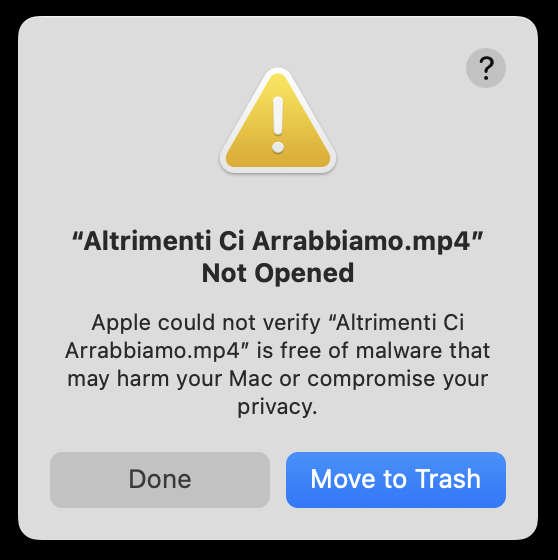
Finally. I've discovered a real and silly problem with my Macbook Pro, or to be more precise, with the operating system. As it happens, I wanted to watch a movie clip, in MP4 format. I double-clicked on it, and the system popped a warning: Apple could not verify ... is free of malware that may harm your Mac or compromise your privacy. I could click Done to dismiss the prompt, or move the file to trash. What.
What makes the issue even more bizarre is that I had already played this clip multiple times on this machine, without any issues. Seemingly, something has changed, which affected my ability to watch the video, and also caused the system to completely wrongly diagnose a simple MP4 file as a potentially malicious item. Well indeed, something has changed. But let me walk you through this, step by step. After me.
Problem source
All right. On a default macOS setup, there is no playback problem. It may not like certain formats or codecs, but if it does, it will launch QuickTime Player and show the content there. This works fine. But what happened was, I had decided, because of the codec issues, to make VLC my default media player. Thereon, the issues began, and the system would complain whenever I tried to play any video file.
Basically, what happened to me:
- If you leave QuickTime Player as the default app for video, no issue.
- If you switch to a different program, as I did with VLC, you get the warning.
The problem gets even more confusing in that you get different warnings if you double-click on the file, or if you right-click and try to open it in a specific program. If you double-click, you will see the warning as shown above. But if you choose the right-click option, the system will tell you the MP4 file may be an app. It will also tell you when it was created on your system (actually when it was opened the first time). And then, it will open correctly in the desired software.

Solutions
There are two ways you can work around this issue. One, you can keep QuickTime Player as the default program, and launch non-cooperative files in VLC or whatever other program of your choosing. Two, you can set up an exception in your system security to allow this new default association.
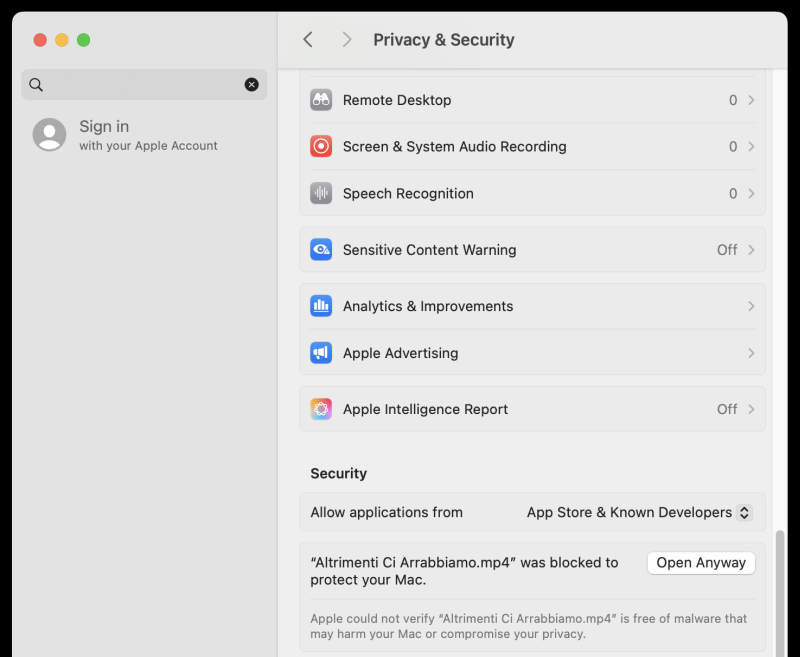
Go to Settings > Privacy & Security. Then, scroll down to the Security section. Below the Allow application from section, you will see the security prompt for your MP4 file. If you click Open Anyway, this will instruct macOS's security mechanism Gatekeeper to always allow this. Yes, it's a bit cumbersome, it's a bit gilded cage nannying for clueless people. I find this rather silly, full Monty Python style. But you can work around this, even without typing anything on the command line (yet a third option).
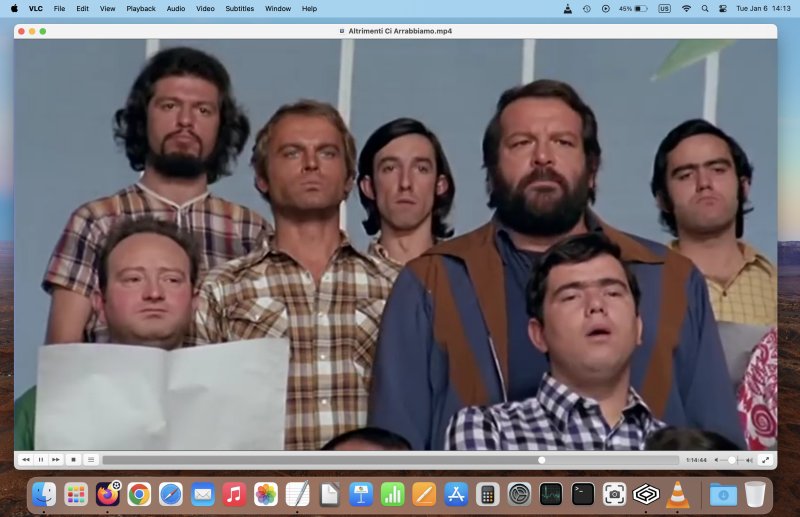
And that's all, now you can enjoy media in whichever tool you like:
Conclusion
The default program association thingie is a weird one. I really don't understand why the system would suddenly throw unnecessary warnings like this. My assumption is that Gatekeeper only really works well with Apple's own software, less so with third-party programs. I'm not sure, but it seems to be the case. Thus, if you decide to make changes to a seemingly "trivial" and commonly used part of your system like media player, then you will get this sort of behavior. It's still confusing and alarming, for no good reason, though.
Luckily, it's possible to avoid or work around the issue on several levels. One, keep the defaults. Two, use right-click when needed. Three, tell Gatekeeper to let it be. Four, use command line, but I've purposefully not written about this method, as I don't want to make my macOS usage a more expensive version of Linux. Things need to work nicely, elegantly, and without requiring leet knowledge. Here we are. I hope you find this wee guide useful. But I still haven't sworn at my new computer yet. I'm still being rather calm. We're done.
Cheers.