Updated: May 13, 2026
Welcome. Today, I'd like to talk today about a familiar topic. Yes, back in 2018, I've already covered this subject. If you want to set absolute size and position for specific application windows, you can do that quite easily in the majestic and superlative Plasma desktop. That guide stands and you can still use it for your various needs, especially if there are programs that refuse to spawn or restore correctly in your desktop session.
Now, I want to enhance the article with some extra tips and tricks. As it happens, the Plasma desktop has gained further functionality and flexibility since, and there are additional, powerful tools at your disposal, should you wish to govern your application windows manually. Follow me then, for a brand new old tutorial.
Example: DOSBox
As I've been playing DOS games quite a bit recently, I do find it somewhat annoying that this program always starts centered. No matter where I want it positioned, or how I set my session (X11, of course), it always pops back stubbornly in the middle, taunting my OCD. Well, so we need to put in line. Literally.
Special Windows Settings
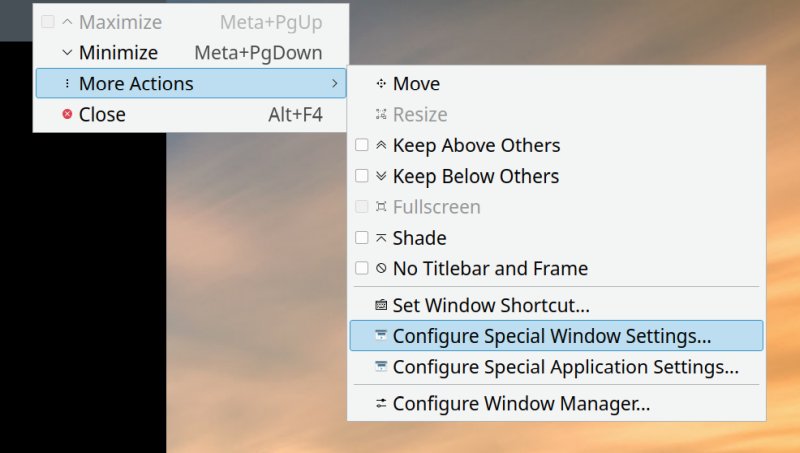
Right click on the window bar of the program you want to manage. Click Configure Special Window Settings.
This will open a somewhat complex menu. It looks hard, but it ain't. There are only a few fields you need to consider to get it working. First, you need to decide if you want the rule(s) to apply only to the specific program, or a whole class (matching the program). In my case, dosbox.
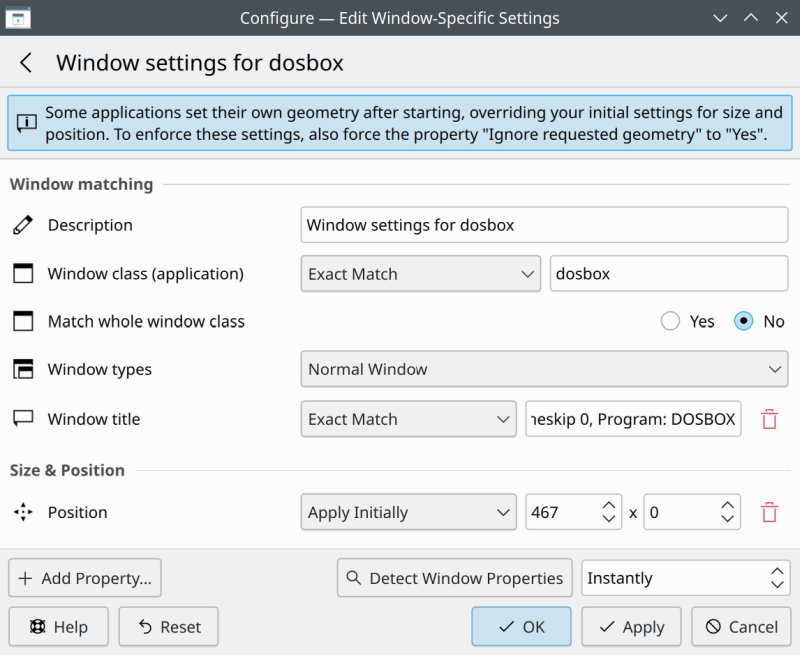
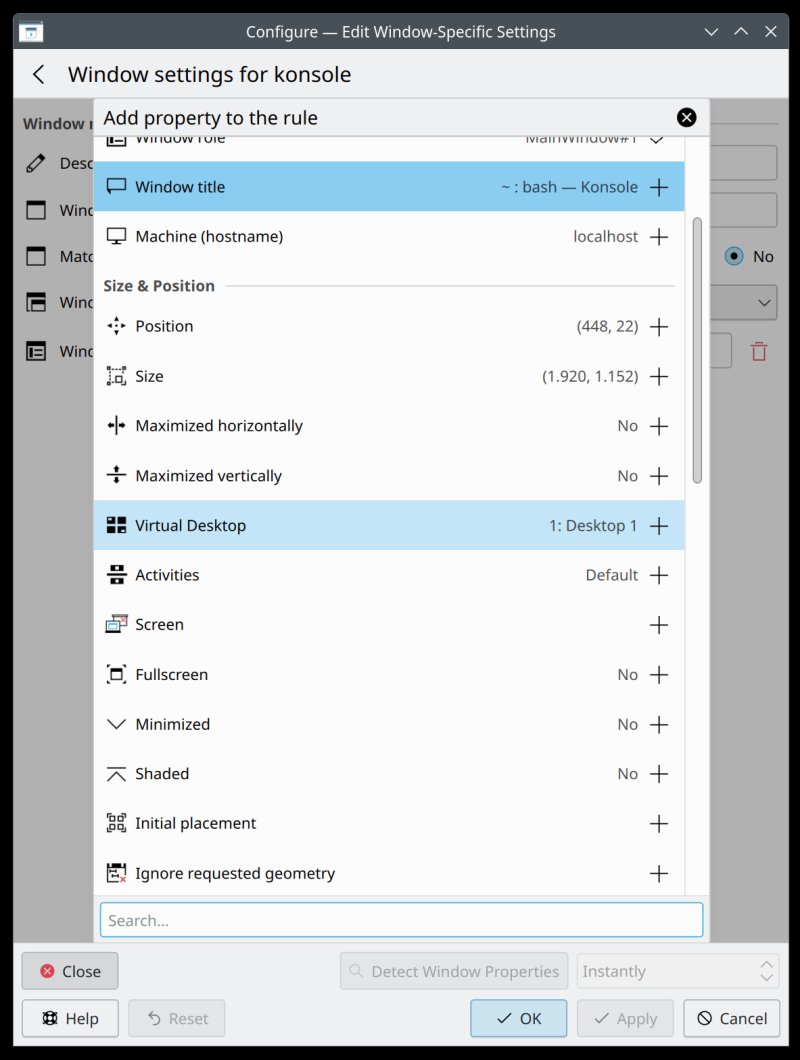
Next, we want to configure Size & Position. When you right-click and launch this menu, it will show you the coordinates of the window at it's currently displayed. This is quite useful, because it allows you to position the windows how you like, then open the settings, and use the coordinates as is. You do not need to do any fancy calculations, taking into consideration your display resolution, distance to this or that corner, etc.
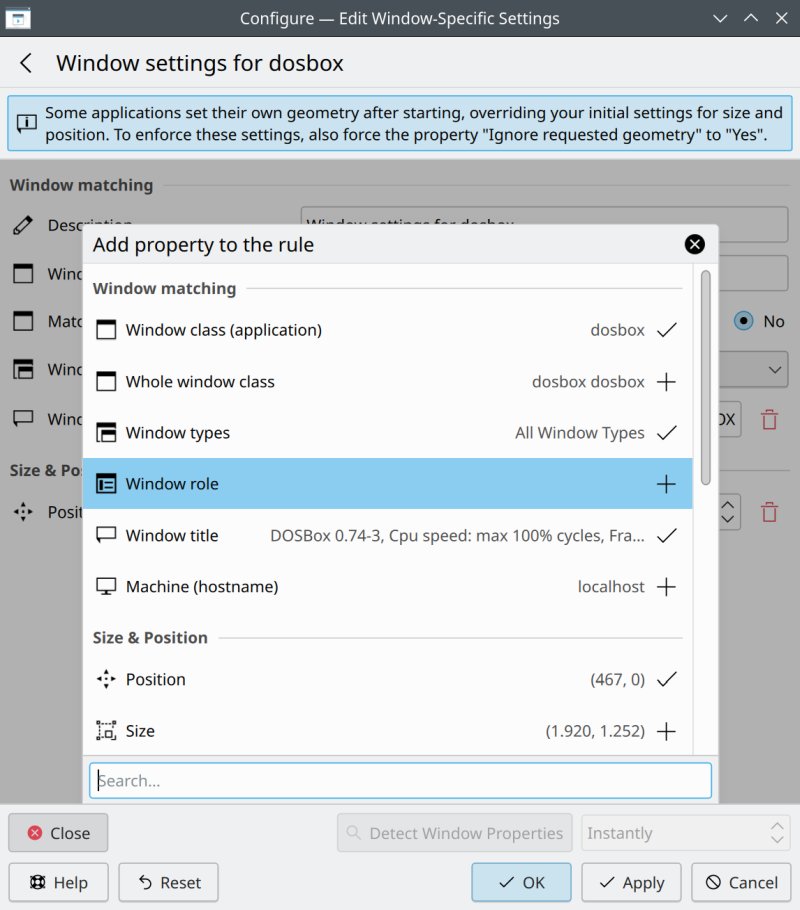
If you do not see Position shown, click Add Property > Position.
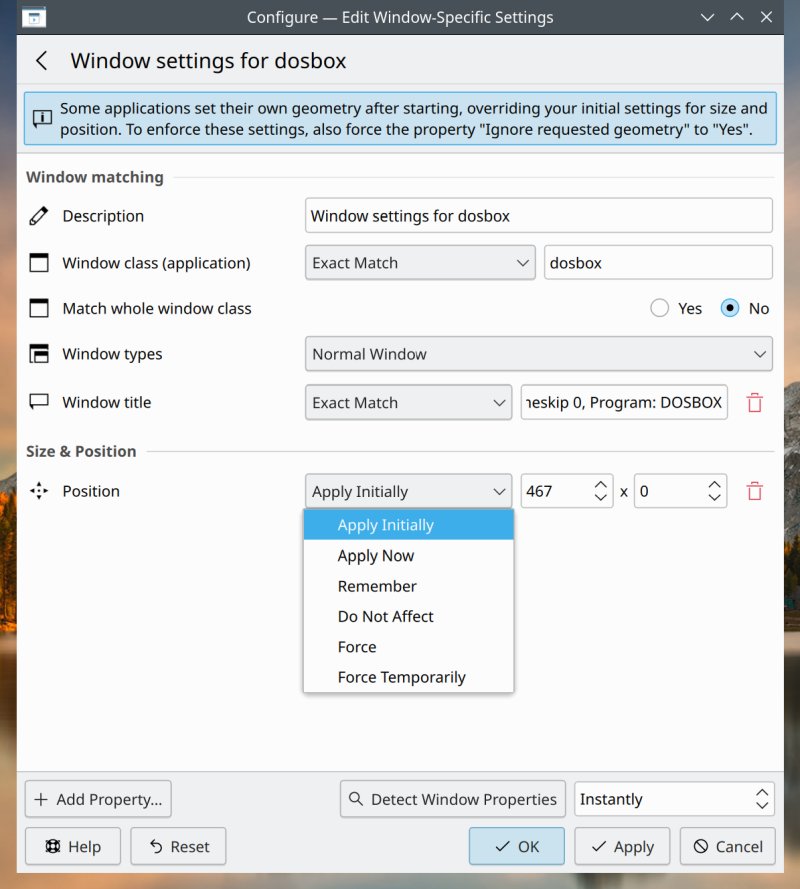
You can also decide how you apply the position coordinates. If you use Apply Initially, then this is how the window will render each time you launch the program, but you can move it freely. If you say select Force, the window will not be movable.
And there's more ...
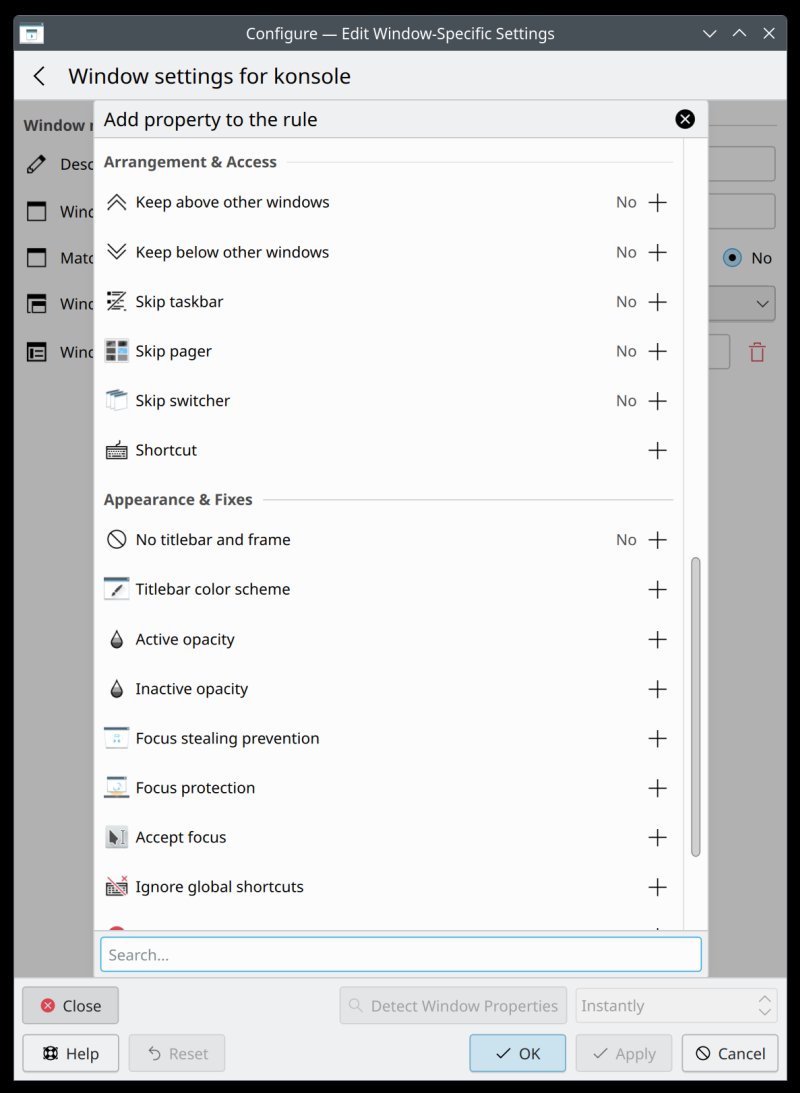
This is only the tip of the iceberg of what you can do. You can force programs to open on specific virtual desktops, activities or screens. You can force geometry, make windows uncloseable, prevent mouse and keyboard focus stealing, and then some. You truly have a huge number of options available, and this wealth dwarfs what any other desktop environment offers. Spectacularly detailed, rich and, above all, useful.
Conclusion
In many ways, my 2026 piece written for Kubuntu 24.04 is rather similar to the 18.04 tips and tricks. But I do feel this guide covers a few more use cases, and it should provide additional usability and freedom. If you also use the session restore option in Plasma, you ought to be quite content, as you will be able to start your system without any manual tweaking. From my experience, positioning issues apply to mostly non-Plasma software, like say GIMP or LibreOffice, which do not quite respect Plasma's session settings. Or DOSBox, for that matter. But with the combo of session save plus absolute positioning, you should have everything perfect.
Well. Almost. I will need to explore whether this lovely Plasma 5 goodness also extends to the new Plasma 6 builds. I haven't checked yet. However, so far, based on my testing, this is only possible in X11, which I use and intend to use for as long as possible. The Plasma session restore and window positioning management in Wayland was always meh, and this still seems to be the case in Kubuntu 26.04. So make sure you reign in your enthusiasm until then, as my suggestions may actually not be applicable across all scenarios. But if you use the superior X11 protocol, then I believe you will find this wee tutorial useful. Try it regardless, you might be positively surprised. See you around.
Cheers.