Updated: March 25, 2026
In 2026, you really shouldn't have any issues running old DOS content on modern systems with ultra-beefy specs. But sometimes, less is more, it seems, as I mentioned in my first performance-related guide. Believe it or not, a 1994 title managed to challenge my 30-years-younger laptop. Why or how? Well, it has to do with the emulation itself and various associated limitations, thereof. But I showed you a neat workaround.
Now, I want to expand on this endeavor and reveal yet another cool trick. It should help you achieve better performance in the game titles that baffle modern technology. Furthermore, there'll be an added bonus of improved sound compatibility. Following on my second DOS sound tutorial, we will now talk about memory management in the DOSBox emulator. Spooky, ain't it. After me, fellas. Let's do it.

Jemm to the rescue
A possible workaround is to use a different Expanded Memory Manager than the default one. To that end, you could try Jemm. To get a better understanding of what gives, you should first check the official repository and do some light reading, and then, when you're ready, download the bundle. Unzip the archive anywhere in your DOS games folder, e.g.: /home/dedo/Games. In essence, it needs to be accessible once you mount your C: drive in the emulator.
The Jemm bundle includes several directories. We want the BIN one, where all the different utilities actually resize, including JEMMEX.EXE, which we will use as our Expanded Memory Manager. If you recall playing all sorts of games in DOS, some indeed required all sorts of tricks to get things working. No different here.
Before we run the utility, we need to change the DOSBOX configuration.
DOSBox tweaks
Open the configuration file and edit the memory section:
xms=true
ems=true
umb=true
Change these three declarations to false:
xms=false
ems=false
umb=false
Optionally, you could leave umb untouched, as it may be ignored when you run Jemmex.
Mount game folder, run Jemmex
Now, open the emulator, mount your games, and cd into the JEMM directory. Here, run Jemmex:
jemmex LOAD
Optionally, as the documentation says, you can specify the memory frame where you want to load the memory manager. You should take into account that there may be some overlap or conflict wih DOSBox pages, which may result in unpredictable behavior. Namely:
FRAME=nnn instructs Jemm to use a certain page frame. Accepted are frame
values from 8000 to E000 or NONE. The page frame should start
at the beginning of a physical EMS page, that is, the frame
address should be divisible by 0x400 without remainder. FRAME=NONE
disables the page frame, but there are quite some programs which
won't run with this setting. A page frame below A000 should
be set only on computers with 512 kB of conventional memory.
Usually it's better to let Jemm find a page frame on its own,
because choosing an address which is not free might cause troubles.
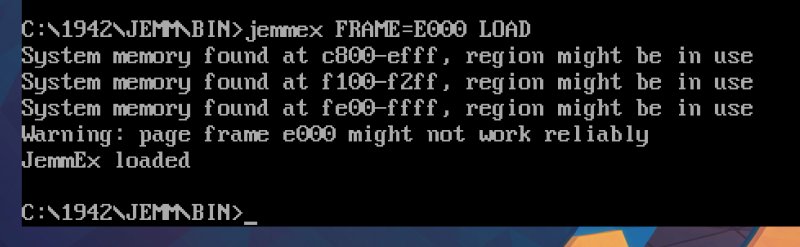
You may also want to consult the FreeDOS page on Jemmex. Either way, you can start without specifying any frame, and see if this works. Worst case, your game won't work, or you won't notice any performance improvement. Alternatively:
jemmex FRAME=E000 LOAD
You may see an error message, which merely stems from the fact Jemm and DOSBox use different ranges. But this error should not really cause any problems with your games, and you will have Jemm correctly loaded and used.
Start game
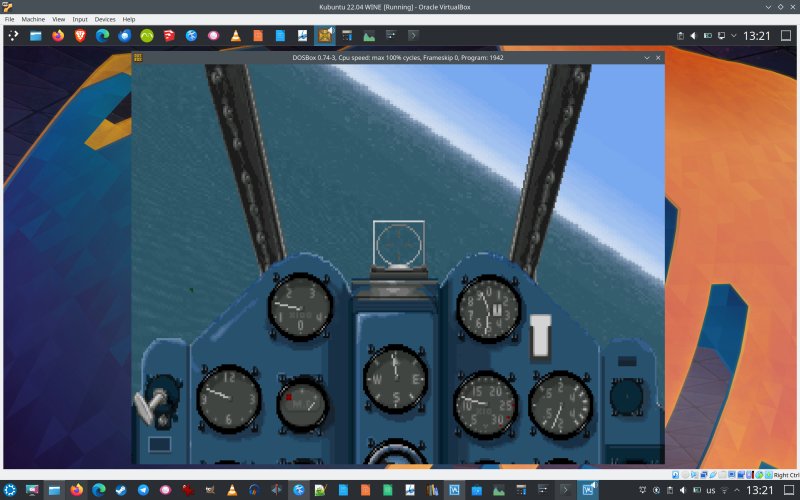
Once this step is complete, run the game. I can report I observed an immediate performance boost, the likes of which I had expected to begin with, running either natively or inside a virtual machine (Linux on Linux), and without changing the host power profile as I remarked in the previous tutorial. Jemmex is doing its thing, and it's working neatly. Best of all, digital sound also works!
Game runs fast and true, even with a charger connected, no power saving profile. 'Tis a VM, too.
Save and use configuration
You do not need to load Jemm with every title you play. You can keep several separate DOSBox configuration files, and use them as needed. One could include the memory directives set to true, another to false, plus an AUTOEXEC.BAT file that automatically mounts the desired folders and loads Jemmex. Or you could do it manually. Entirely your choice.
As I noted in the second sound tutorial, if you have a configuration you like, and don't want to use it for all of your game titles, you can launch DOSBox on the commandline with the conf flag:
dosbox -conf path-to-new-config
For instance:
dosbox -conf /home/dedoimedo/.dosbox/dosbox-0.74-3-my-game4.conf
Conclusion
All in well in the DOS land now. My vintage simulator now performs admirably on all fronts. The speed is speedy, the sound is sonorous. Coincidentally, with Jemmex as the memory manager, digital sound is also improved, although you will have decent effects regardless, either with Sound Blaster 16 or AdLib Gold. This is a nerdy, niche tutorial, and I'm not sure that many people will ever need it, but should they, I'm happy to have overcome the issues. It just took a couple of decades, that's all.
When it comes to performance, if you're not in the mood to fiddle with Jemmex, you can still get okay results with the tips and tricks I outlined in the first article. But I do suggest you give the little Freedos utility a whirl, as it opens up a whole range of possibilities. It will allow you to reduce the number of cycles you dedicate DOSBox, and you won't need to worry about any power profiles on laptops. You will also be able to run games inside virtual machines without problems. As a bonus, you may also score on other fronts, like sound. For me, this old, outstanding issue with the 1942 simulator is now ancient history. And we're done. Enjoy.
Cheers.