Updated: June 5, 2026
The "modern" Web is one giant pile of crap. If you disagree, you should probably close this article now, as pretty much anything I write here won't really matter. If you believe social media, vertical videos and apps are cool and amazing, have at it. On the other hand, if you still practice sensible computing, use your desktop as a good, trusty tool, find little joy in smartphones, and you feel concerned about the direction the Internet is going in, then you may want to stick around for some good old-fashioned security tips from a dinosaur.
In this guide, I want to talk about what you can do to make your online experience slightly less sufferable. I can't promise any great satisfaction, but I can perhaps lessen your pain. Furthermore, with "AI" blurring the lines between lightweight crap and heavyweight crap that passes off as the Web today, you really need to exercise extra caution, if you want your Internet to be quiet and pristine. Let's commence.
Table of Contents
- Word of caution
- Browsing security
- Mail security
- Downloads (of any kind)
- Non-default programs
- Practical mitigations in common software
- Automatic updates (or rather, not)
- Smartphone security
- Cloud security
- Networking devices and gadgets
- Virtual Private Networks (VPN)
- Password management
- Conclusion
Word of caution
First, a wee disclaimer. My article isn't designed to be a foolproof formula for Internet shenanigans. It won't protect you from state actors, it does not replace common sense (however you define it) or healthy doubt. All of us, I repeat, all of us, from noobs to most tech literate professionals, are susceptible to social engineering, and we will all, at some point, make this or that mistake, whatever the circumstances. Hubris has no place in online security. The best you can do is be constantly vigilant. It's a draining experience.
There's also a thin line between healthy practices and tin-foil hermitism, and you want to make sure you don't turn your online use into a security nightmare. There's also no silver bullet, and no unified method that can and will protect everyone, or all the time. My guide aims at giving you some defense against nonsense, but you should always remember: the modern Web is a lose-lose game. You only choose how much you are willing to lose.
I will mostly focus on desktop operating systems and usage aspects - Windows and Linux. I will also provide some useful tips and tricks for Android and iPhone (iOS) users. There will be some small mention of gadgets and other devices, as well as cloud and such. I still think this guide will be beneficial to everyone.
Finally, there will be some tiny repetition in some of the sections, as certain programs and tools offer multi-purpose usage. To make things easier to follow, I will focus on functions rather than software, which is why certain programs may show up more than once in this guide.
Now, let's commence most gingerly forward.
Browsing security
Arguably, this is probably the most important aspect of it all. On the desktop, mind. (Most) mobile users will likely "enjoy" their Internet through apps, which are essentially single-website wrappers, with no address bar shown, and some extra profiling and nonsense added into the mix. Still, I will also address smartphone browsing, too. Anyway, your browser is your portal unto joy and pain.
Browser choice
I would recommend Firefox. For many many reasons:
- It is the only major browser not based on Chromium. Thus, if and when the Chromium project introduces changes, many of which are influenced by Google and Microsoft as companies behind Chrome and Edge, then with Firefox, you have some level of freedom from those choices. Often, Mozilla follows suits, but sometimes, it also exercises independence, with a bit more focus on user privacy than the other players.
- Firefox allows you to use the most awesome UBlock Origin (UBO) adblocking extension. We're talking the Manifest V2 version, which is only still supported, among the big guys, in Firefox and Brave.
- Not only that, Firefox ALSO supports UBO in Firefox on Android! You can have a proper, fully fledged adblocker in your Firefox browser app on your smartphone. This gives you unpredecented crap-fighting abilities.

- Firefox can be visually customized, so if you don't like "modern" UI stuff, you can make manual changes. Indeed, if you're interested, please take a look at how I changed Firefox post-Proton editions to look sensible, including v91, v91-94 and v97 fixes. All of these work superbly in Firefox 150-151, with only tiny tiny changes here and there. You don't get this level of flexibility elsewhere, mind.

- Firefox lets you edit many of its configurations, including removal of tons of built-in or added stuff.
- Firefox supports the Multi-Account Containers extension (built by Mozilla), which lets you create separate containers for different purposes, each with its own session and cookies. Thus, you can potentially have five different Gmails open in five different containers, and they will all each only see their own data. You can use this functionality to compartmentalize your browsing, with a container for shopping, for mail, for testing, and then some.
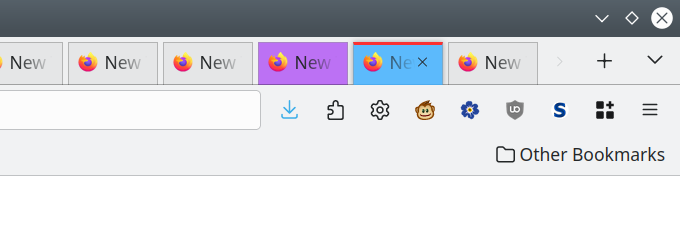
The colored tabs each represent a different container ...
Secondary browser choice?
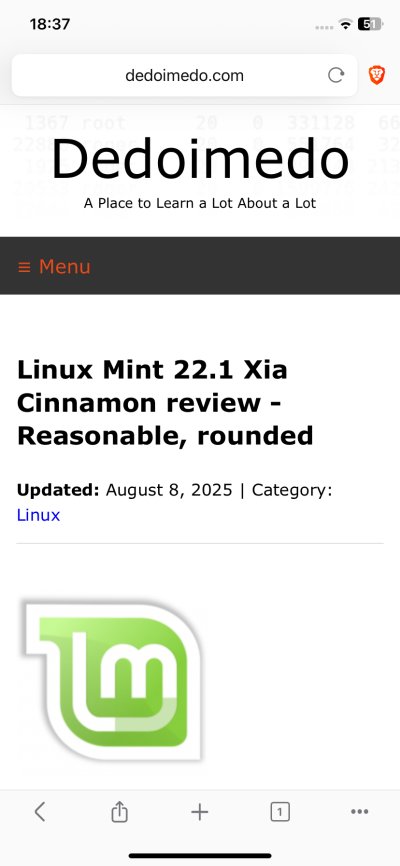
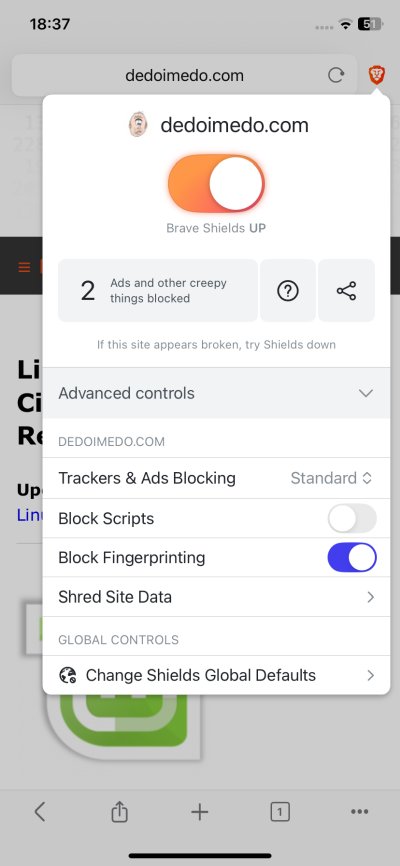
Brave. I've come to this conclusion after testing this browser in iOS on the iPhone. Brave has its own adblocker called Shields, and elsewhere, it also supports a number of excellent Manifest V2 extensions, like the valuable UBO for instance. This makes it a good candidate for reducing the amount of noise and nonsense vectored at you in your browsing experience. Mind, I will occasionally use Chrome or Edge in Linux, I do admit, but if you're looking at a most cross-platform capable secondary choice, I would have to say Brave, especially for iOS, should you not like Safari.
Browser extensions and adblocking
Most modern browsers support extensions on the desktop. These add-ons allow you to indeed extend the basic functionality of the program beyond intended functionality. If you ask me, there are a few extensions that are simply a must. Well, at least one (or one+) is a must, and two are very nice to have.
- UBlock Origin (UBO) - As mentioned, it helps make the insufferable, crappy modern Internet somewhat worth using. I wouldn't rock without it. And it works in Firefox both desktop and smartphone, plus it is available in the desktop version of Brave.
- UBlock Origin Lite (UBO Lite) - This is the Manifest V3 edition of the above, somewhat less capable, but still excellent. You will need to use it if you want to have adblocking in Chrome, Edge and friends on your desktop. On the smartphone, I don't know if any of these other browsers offer any such functionality, as I never ever use these there, and I even uninstall or disable Chrome on any Android. Part of my privacy stance, yes. Another advantage of this extension is that it is also available for Safari in iOS. If you want to use Firefox on the iPhone, you won't have any adblocking. Firefox Focus has some blocking abilities, but mostly against trackers, not ads. The functionality there is rather quite limited. So choose wisely.

- Noscript Security Suite (NSS) - This extension isn't really for everyone. It's a powerful tool that lets you selectively block Javascript and many other elements on Web pages. In a way, it renders most sites into static pages, and thus breaks their functionality, but it also means no Javascript fingerprinting or profiling or even exploits can run. But you can set it up in a so-called normie mode, where you DO allow scripts for most sites, but then you do disable elements like remote fonts, unrestricted CSS, LAN access, WebGL by default, and there's solid cross-site scripting (XSS) protection, too. This makes your browsing far more robust and secure. NSS is available in Firefox both on the desktop and the mobile. I've also used this extension in Chrome (desktop), and I'm not sure how well supported it is in other browsers.

- Firefox Multi-Account Containers - As mentioned above, a Firefox exclusive.
Browser settings
Now we get into the day-to-day stuff. Regardless of what your browser choice is, you can still exercise some prudence and diligence:
- Disable access to resources you don't want sites to use, like say microphone or camera.
- Disable hardware acceleration if you don't use your browser for intense 3D tasks or heavy video streaming. This will make your browser only use CPU, no GPU. You might experience some performance penalty or higher battery drain, but you will automatically block an entire class of potential security issues.
- Disable WebGL, for similar reasons as above. Your browser is not meant to be a wondrous portal of multi-dimensional enjoyment. P.S. Noscript lets you block WebGL on a per-site basis.
- Disable or tweak WebRTC, especially if intend to use VPN, as this protocol can leak your real IP address. Some browsers let you minimize so-called WebRTC leaks, or you might want to block it altogether. Do note this could break certain programs, like say conferencing software.
- Do not auto-download files or auto-play media.
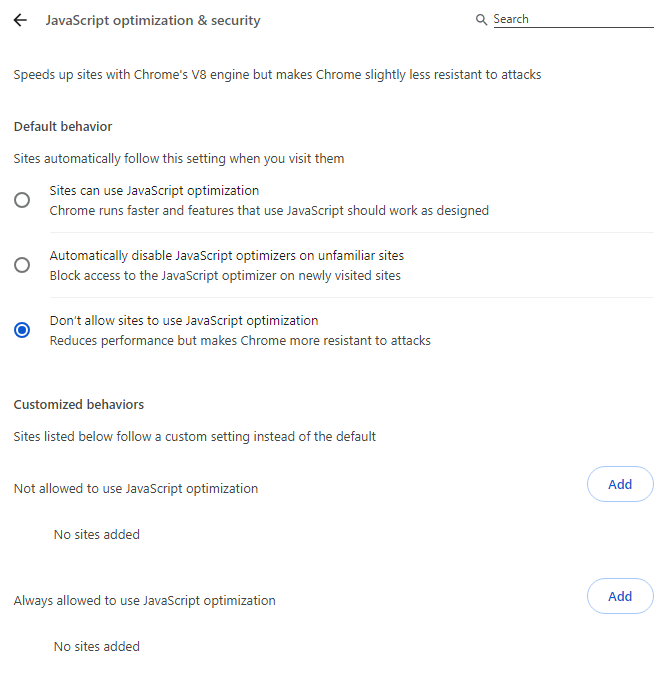
- Chromium-based browsers - Disable any Javascript optimization. This will significantly reduce your attack surface, as it will prevent any "real time" Javascript compilations and similar. It may reduce performance a little, and a few sites may break, but you can always add exceptions. By and large, you probably won't even notice any issue.
Now, the most important bits of them all:
- Do not save passwords in your browser! If there's a big big exploit, you may lose all these passwords. Yes, it is more convenient, but then, security and convenience don't go well together. For that matter, I wouldn't use any browser password manager, password manager extension or anything of that sort. Hard, manual gruel is the way to go. But if you say, Dedo, I have 700 sites saved, then please, think about. If you actually interact with 700 sites on a regular basis, you have a different issue at hand, right. If anything, use an offline password manager, disconnected from your browsing experience. KeePass is a good choice.
- Do not save your payment data. Same reasons as above.
- Generally, avoid being signed into websites unless you really have a reason. Again, if there's an exploit, there's less likelihood of potential data harversting from your browser. Less convenient, but more secure overall. At the very least, use separate containers (Firefox).
Mail security
Once upon a time, mail allowed people to communicate. Digital letters and all. Nowadays, people mostly use mail for notifications, account registration and recovery, and an occasional to and fro with some friends or colleagues. It still remains a highly powerful vector for security breaches, as it allows you to send attachments, entire documents full of wonders and perils. The rules of engagement for mail are as follows:
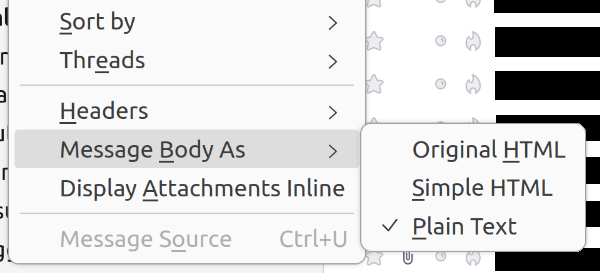
- Display mail as plain text. If your software allows it, use plain text. This means any HTML, Javascript or images won't be displayed. You will only get a raw message, as intended. Most Webmail clients do not allow you to use this mode, but some do offer additional security by restricting or stripping away elements from emails. For example, Gmail won't let any Javascript run, and it will sanitize HTML, plus all external images are loaded through dedicated Google-run proxy servers. Most Webmail providers will disable links in suspected spam messages.
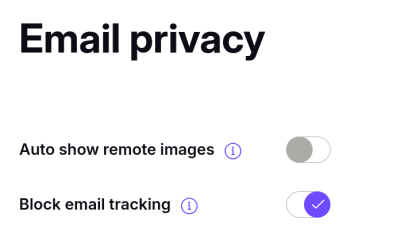
- Disable remote content. In addition to the above, you can block remote content, fonts and images included. The latter can be used to track user mail interaction. It works as follows: emails come with tiny embedded remote images, usually 1x1 white pixels that you won't notice. Each email comes from its own unique URL, thus whenever such a message is opened, and the image is loaded, the third party will know that the email has been viewed in some fashion. This is a popular tactic with marketing emails. If you disable remote content, your messages will be less pretty but more secure.
Day to day emailing
Let's start with the most pressing conundrum. How can you know if an email is legitimate? Should you open it? Indeed, regardless of how you display your messages, you still need to know whether to interact with the email. By and large, email falls into following categories: relevant emails addresses to you, irrelevant general information and marketing emails sent to you, general spam, specific malware.
- Emails addressed to you will be relevant, include familiar information, like your name or other details pertinent to the subject (like say bank account, quotation from a vendor, follow-up communication, etc). This still does not mean the message is safe or 100% legitimate, but it's a reasonable starting point.
- General information email should never contain any actionable items. Read and move on.
- Marketing spam is as it says on the envelope. Discard and move on.
- Malicious emails? Ah. This is a tricky one. How do you tell them apart from the legitimate ones?
Action and urgency
Mails that want to goad you into executing malicious payload and/or disclosing personal information will try to appeal to your base instincts. Fear, panic, indignation, outrage, surprise, and alike. The idea is to trigger you into making a quick mistake. Such mails will usually come with big warnings and ominous signs saying your account has been suspended, you need to pay a fine, and then some.
There's an entire PhD worth of psychology behind these emails, so discussing all of them in a single tutorial is impossible. But as a general rule, you should never ever hurry, whatever the email says. If anything, if you ever receive a panicky email, step away from the keyboard. Right away. For at least an hour, maybe two. This takes immense discipline, but it can be done.
No action and no urgency
Now, there's an even cleverer tactic - zero-urgency scams. Oh, these are sweet. The idea is to lure you into a sense of complacence and trust so that you lower your guard. It is very, very difficult to fight these, as the whole point is to lure you into a sense of safety. The honeypotting can take weeks, sometimes even months. Thus, the only truly reasonable defense is not to have any trust at all, and assume that almost all and any correspondence is problematic. This means you will handle links and attachments with suspicion.
Examine mail header
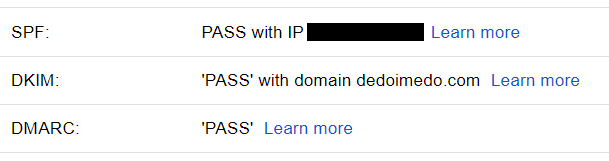
This is a rather nerdy action, and not for everyone. Basically, almost every mail client allows you to check the "raw" mail information, the stuff behind the scenes. In the last few years, the email protocol has been extended to include additional authentication methods designed to differentiate between real, legitimate senders and fake ones trying to spoof this information. Without going into details, there will be three markers that label each messages. SPF, DKIM, DMARC. However displayed, these should say PASS. It's a reasonable indicator of legitimacy of the email you have just received. Still not a guratantee, but a good mid point.
Links
You need to pay special attention to links. They take you ... elsewhere. Yes, the modern Internet has been designed for quick, hyperactive convenience, and over the years, people have been indoctrined to just click, right there, so they can shop and buy before they change their mind. This attitude runs contrary to any sane security logic, and it's one of the big enemies to your email security.
- Do not click on links. Never. Ever. First, if you receive a shortened link, simply do not open it. Period. There is no legitimate reason why anyone would ever send you a shortened link. Second, copy the link. Right-click on the desktop, long-press on a touch interface, and copy it. Third, paste it into a text editor or a note tool of some kind. Fourth, inspect the link. In many cases, links will have lots of extras. For instance:
dedoimedo.com/page.html?here-comes-the-fun-part
- Usually, after the standard address, whatever it is, there will be a question mark character (?), followed by various declarations, variables and parameters that tell the remote server what to do when the link is accessed. In some cases, the extras will be required, like user ID or session ID. For instance, you need this when you want to validate an email address after a registration. But in some cases, these unique extras may be there as a lightweight tracking method, to associate your mail, your browsing and other activities to your online entity. This isn't unique for emails, but it's quite prevalent there. For fun, just check what sharing links in any mobile app look like, and you will often see they include unique per-session identifiers in addition to the actual shared content.
- Once your link is in a text editor, your next step is to decide what to do. Sanitize the link and remove extras? See whether the URL contains personally identifiable information? Triple-check for any spelling mistakes, errors or unexpected characters? The last one is a hot one.
- You probably don't think about this much, but most modern browsers accept non-ASCII (or ANSI) characters for domain names. This means a link to a website can include non-English letters. This is fine on its own, but it can be used to trick people into visiting links or addresses that "look" like the original thing, but are in fact completely separate things. It depends on how your browsers renders these "international" lookalike characters. Indeed, the character confusion trick is known as IDN homograph attack. Some browsers will automatically convert these "rogue" characters, so you will not be easily duped. But some may show these lookalikes, and you might not be able to easily tell your pot-ey-toes from your pot-ah-toes.
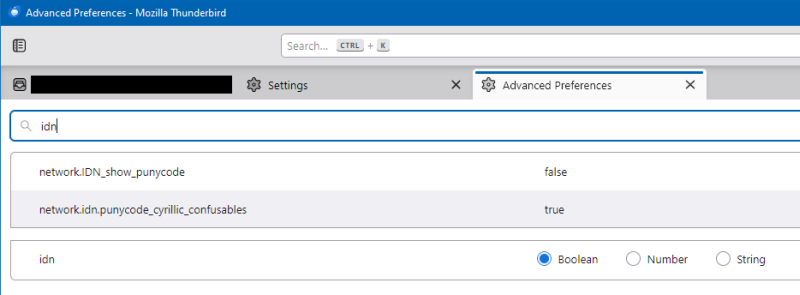
- Luckily, you can configure (some of) your browsers and even mail clients to show punycode, which is the popular name for these non-ASCII characters. For example, in both Firefox as well as Thunderbird, you can open the configuration editor, look for the option named network.IDN_show_punycode and toggle it from false to true. No more visually spoofable domains.
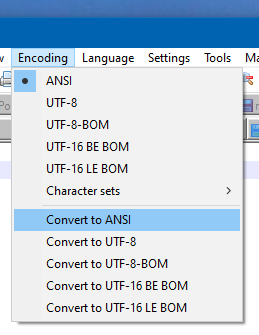
- That said, the advantage of the text editor method is that it allows you to figure out potential problems even if your browser or mail client can't. You can force the program to use specific character encoding, thus if a website address contains non-ASCII characters, you will be able to spot it. You need a good capable text editor for this purpose, of course.
Attachments
Here comes the big Trojan horse of the email world. At some point, someone will send you a document of some kind. You need to decide whether to download it, and potentially open (or run it). If the files contain malicious code, you may ruin your system. This interaction is always the weakest link of email message exchange. At this point, pure software rigor becomes social engineering, which we will discuss more later on.
- If you do not expect a person to be sending you an attachment, do not open it. This also means not using any sort of email preview functionality, as this may trigger automatic download and loading of attachments, or some types of attachments.
- Even if you do expect a person to be sending you an attachment, you need to be careful. After all, you can only be betrayed by those you trust. You may actually want to phone call the person, to verify they are sending you what you expect to receive, if anything.
- Now, if you do want to "see" the attachments, browsers and through them Webmail do offer some advantage in comparison to most standalone mail clients. When you view content inside the browser, like say PDF files, those files are loaded and displayed inside the context of the browsing session. This means you have the specific browser security sandboxing and specific webmail security as your first level of protection. Malicious content embedded in attachment would need to punch through those these first before it can touch your underlying host.
Still, since mail attachments treatment is no different than Internet downloads per se, whether you're talking about media, documents or software installers, I will explain this in a dedicated section below. We will discuss the fine points on how to handle payload - any payload - you want to run from your hard disk.
Downloads (of any kind)
So, we go from attachments to downloads. Technically, there are two types of files:
- Executable files. When you run them, they do something on their own. Like say Windows EXE files.
- Non-executable files. On their own, they don't do anything, and they require some program to run them.
Furthermore, we can probably classify downloads into three groups:
- Software installers that you deliberately download to set up this or that program.
- Documents you receive, usually via email or various online portals.
- Media files (like movies or songs) that you consume.
Whichever file you need to handle, there are multiple obstacles and hurdles at hand. First, there are many, many different executable file formats, most of which you have never heard of. Second, ignoring the obvious spoofing of file extensions (like the famous myfile.doc.exe thingie of yore), even if you do know which is which, there is still no guarantee the payload you received is benign. After all, once you execute something on your machine, you've already, sort of, let it past all your outer defenses.
I am not going to go into a whole saga of how one should behave, but here's a handful of recommendations on some healthy if somewhat exhausting practices on how to manage payload.
Software installers
Recently, one of the most popular and effective methods of malware distribution is through supply chain attacks. Rather than hoping or expecting the end user to click on a rogue file and run it themselves, the idea is to poison the upstream source of benign software. In other words, you will download something expecting it to be totally legit, but will in fact be malicious. This may be the download itself, or perhaps one of the subsequent automatic updates. To name a few examples recently, there was a Notepad++ plugin update hack, the Axios npm supply chain attack, or the JDownloader installer problem. There have been at least two solid dozen more noteworthy incidents of similar nature in just the past few weeks. Oh yes, like many many thousands of GitHub repositories being compromised almost all at once! The wide-reaching implications of these incidents will reverberate for months, maybe even years.
This means you can't really trust anything or anyone. A good starting point.
Finding the right software
With the modern Internet dominated by "AI" and supply chain attacks, it can be very hard finding the right tools for the job. Basically, it's an uphill battle. In this regard, Linux users have an advantage as most Linux distributions offer their own repositories of software, controlled and maintained by the distribution creators. While this is not a blanket guarantee, it does offer a layer of safety that makes it a bit harder to trip oneself and accidentally install baddies on one's machine. Remember: in the end, you are your worst enemy, and only your discipline, or lack thereof, will determine how successful you are in navigating the Internet minefields.
- Search for your desired software in at least two different search engines. Make sure the official site address matches in both.
- Verify the URL by searching for the software on Wikipedia (if the entry exists). This will give you a third verification that the site you want to visit is (most likely) legitimate.
- Download the desired installer.
- Stop, don't do anything just yet!
Now, in Linux, things are a bit easier. Also, a bit more difficult, because there is TOO much variety. The Linux ecosystem is quite heavily fragmented, and there a dozen ways to accomplish any one thing, which also makes it harder to figure out the best and/or the most secure method. But in a nutshell, if you require software for Linux, you can use the following methodology:
- First consult the official website (same logic as above), and see whether the vendor/developer offers a native Linux setup option. For example, a program like VLC is available in Ubuntu, so you do not need to manually download anything. You can run the system's built-in package manager to get the media player. You can use the GUI or the command-line tool equivalent.
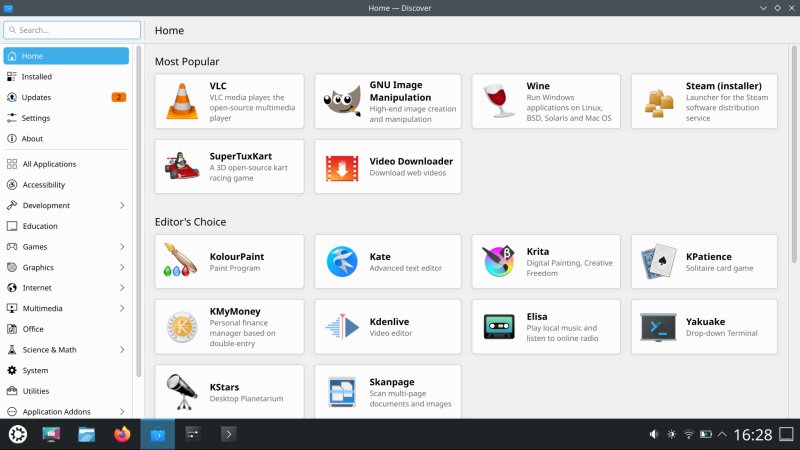
The Discover package manager in Kubuntu (a version of Ubuntu), showing a range of available programs.
The command-line equivalent would be, with say VLC for instance:
sudo apt install vlc
The program may also be available in one of the sandboxed formats like Flatpak or snap. You can consider those, too, as they offer some additional security, a topic which we discuss in more depth soon. However, here, you need to note certain important differences to the native packages.
Modern Linux distributions usually have two (or even three) packaging tools:
- You will have the native tool, which offers packages from the Linux distribution repositories (or archives). For example, Fedora will offer RPM packages from its own Fedora repositories. Ubuntu will offer DEB package from its own servers. Both of these are gated by the respective maintainers of these distributions. In the example above, we directly installed the DEB version of VLC in Kubuntu.
- As mentioned, you can also use a "newer" packaging format like Flatpak or snap. These are designed to be more portable, easier to maintain, and could/should offer higher security due to sandboxing.
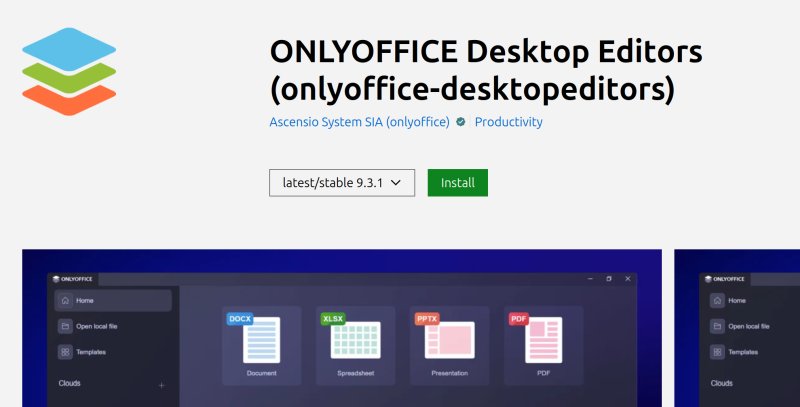
- Snaps come from the Snap Store, maintained by Canonical, the parent company behind Ubuntu. Technically, you can install snaps from anywhere, but by and large, if you utilize systems that support snaps, you will most likely use the built-in package manager (snap), and grab software from the store, directly. The store ownership gives Canonical a higher degree of control over the content hosted here. However, like any app store, there can be (and there were) occasional problems with misbehaving and outright malicious software. Anyone can upload their own snaps, so you should only look for verified software from their upstream owners and vendors.
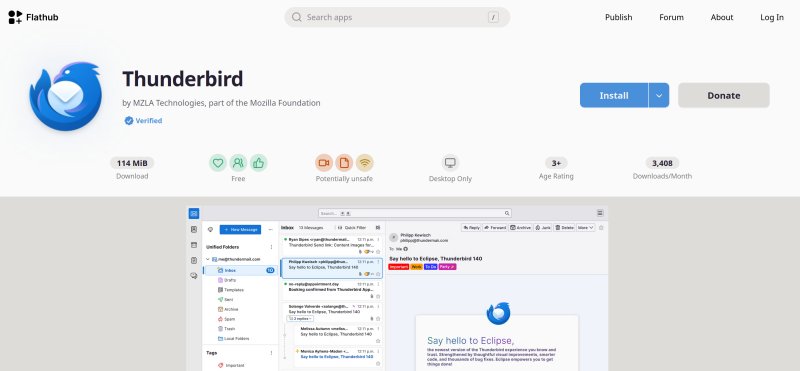
- Flatpak is a community project, without a direct company ownership. The largest online repository of Flatpak package is FlatHub, a functional equivalent of the Snap Store. Similar software vetting principles apply. You need to confer trust to the maintainers of this online shop, and verify that the hosted programs are what they claim to be.
Here's an example of a verified snap from the Snap Store:
And a verified Flatpak from FlatHub:
Conversely, here's an example of an unverified package, as I showed you in my Wayland benchmark article:

If required software is not available in any one of the listed channels, or you do not feel comfortable using the newer packaging formats, then you may want to download and install software directly from the official websites. This last resort is similar to the typical Windows user software installation experience.
Multi-engine scan
When you download a new installer, you should first scan it through VirusTotal. This online service will process the uploaded file through some 60-90 different anti-malware engines. It will then give you a bill of health. The results are a first decent indicator of whether the file is a-okay or not.
- All green is good, but please note that there's no guarantee.
- One or two reds can sometimes be triggered by false positives.
- Lots of reds usually means something is fishy. Or phishy.
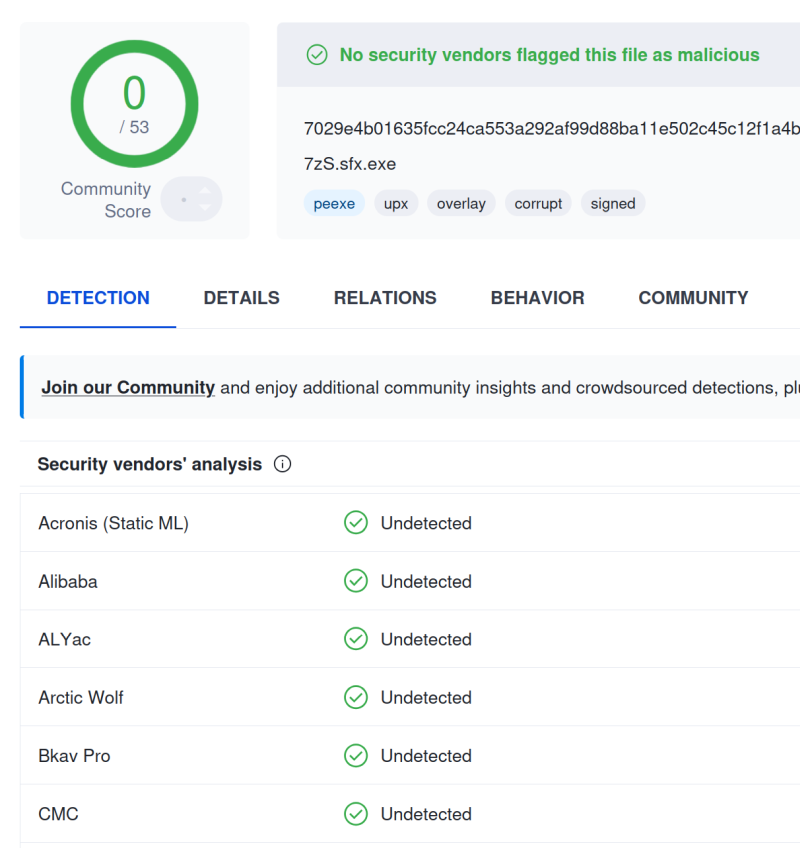
Now, if you want to proceed and you do have time, let the installer be. Then, a week later or even a month later, rerun the scan. This may help catch any clever, latent malware that slipped past the initial detections and such. Of course, most people will want to install software right then, which complicates things. But if you can plan ahead, then you should prepare for this medieval-like "quarantime" period, and keep your old installers, just in case.

Medical ship, for checking passengers offshore. Credits: NARA, in the public
domain.
Testing new software in isolation
Your next step is to test the installer. Your level of paranoia, technical experise and computing budget will determine what you do now.
- Ideally, you will test the new installer in a virtual machine on a separate host on a separate network. Few people will have resources for a dedicated testing environment, though. Also, this is not a foolproof method, because sometimes, malware will detect virtual machine setups and not do any damage. Or the code may be sophisticated enough that you won't be able to discern any evildoing. Sometimes, the bad code may sit latent for months before triggering in earnest.
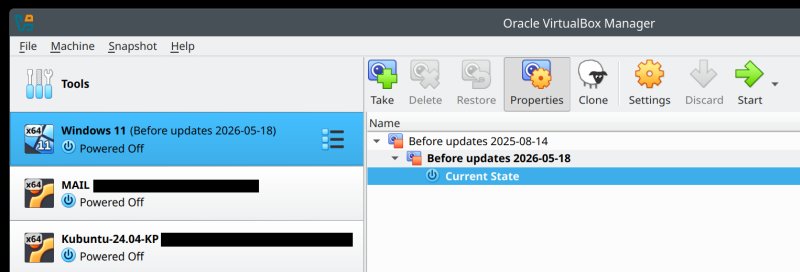
- If you cannot afford a separate physical host, you should at least consider virtualization. Create a virtual machine, set up the desired operating system as a guest inside it, create a snapshot that you can revert to once you've done your testing, and then run the software installer.
- If neither of these options is feasible, then you might want to consider sandboxing.
Sandboxing in Windows
A good and useful tool you may want to consider is Sandboxie. This program allows you to run programs on top of an isolation layer, with limited access to your real host. If there are any exploits in your software, their damage will be contained. If you delete a program's sandbox, you will also delete any data created inside it, which is sort of equivalent to reverting to an earlier snapshot of a virtual machine. Super-sophisticated malware can escape sandboxes, so there's no guarantee, but as a layer of defense, it's a pretty robust element.

Sandboxing in Linux
Linux offers numerous mechanisms for application hardening and isolation. They serve a dual purpose. They allow for a more secure testing of new software AND they can be used for ongoing security hardening, which we will discuss in more detail later on.
- In distributions based on Red Hat, the SELinux hardening allows programs to be restricted in what they can do on the host system. The use of this technology does require some expertise.
- In distributions based on Ubuntu, you can use and create AppArmor profiles to harden and restrict programs. The use of this technology does require some expertise. Ubuntu ships with a number of ready or active profiles for certain common programs.
- In distributions that use Flatpak, you can use this package mechanism to deploy software, including with reduced permissions to system resources. For example, you may disable network access to a suspicious Flatpak. Another advantage of this solution is software portability.
- In distributions that use snaps, in a similar manner, you can deploy programs with restrictions like access to the home directory, network, USB media, audio, and more. Like Flatpaks, snaps offer portability.
- Most Linux distributions also support firejail (and Xpra). To quote from my own article, Firejail lets you use AppArmor profiles, it can sandbox AppImage programs, limit network bandwidth, restrict access to certain directories, use chroot, bind programs to specific cores, limit program access to specific D-BUS interfaces, use separate DNS or network gateways for multiple-NIC scenarios, route network traffic, assign different network addresses to specific programs (including no network at all), disable access to sound or video, use seccomp filters, rate resources like disk, memory or CPU, trace programs, sandbox X11 applications, and more.

Running Windows software in Linux
You can also test Windows program in Linux via WINE. I've written about this utility numerous times. It's the lynchpin of many many solutions, including the fabulous Steam Proton, as well as CrossOver, both of which I use day to day. With WINE, you can install Windows programs as if you're running natively. Some software may not run, but a large number of programs will work reasonably well. The advantage of this approach is that you can create multiple virtual C: drives, one per program if you like, and you can then test software with a reduced chance of collateral damage. You can also restrict disk access, offering another layer of safety in software testing and exploration. Sure, there are no guarantees, but it's a reasonable compromise.
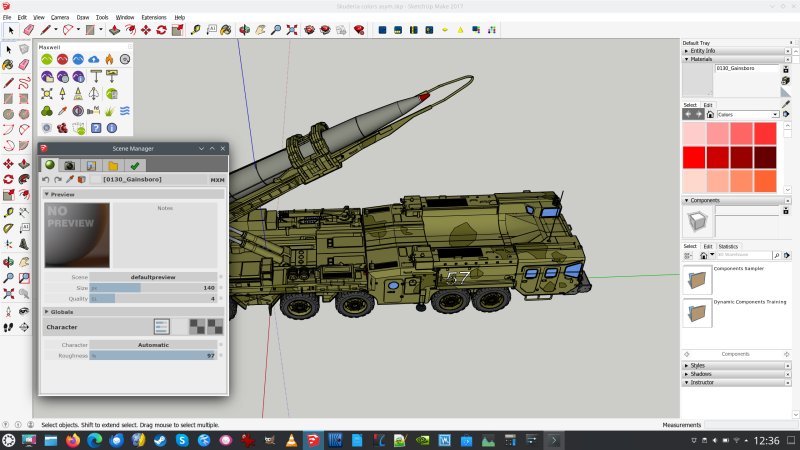
SketchUp Make 2017 running in Linux, complete with several plugins.
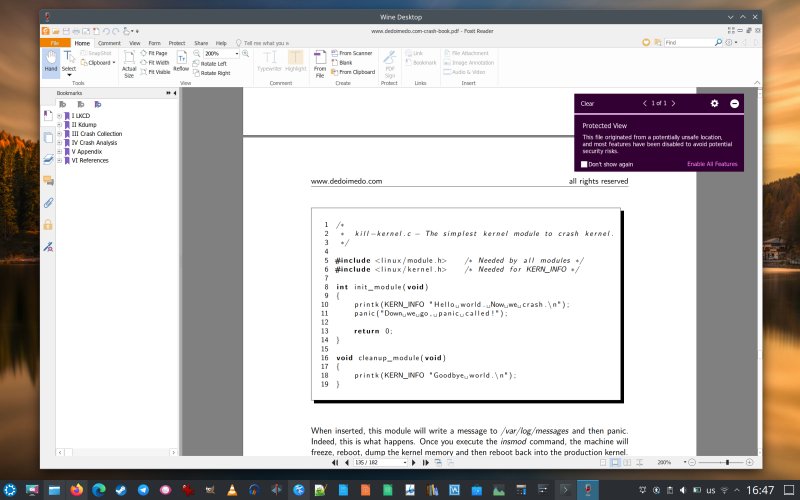
Foxit Reader running in Linux (using WINE).
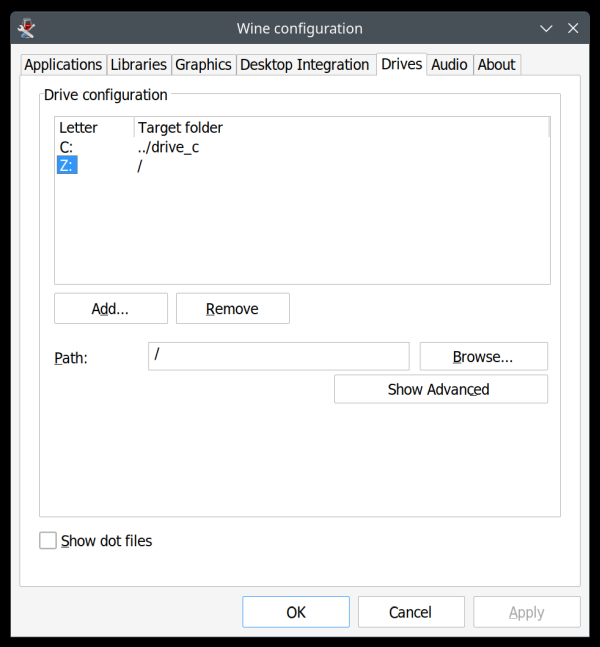
To make sure your Windows programs cannot see or access your Linux home, launch the winecfg utility, go to Drives, and remove the root (/) path. In other words, remove any letters (like Z: or Y:) other than the default C: drive. Optionally, you can add custom paths for the specific applications.
Documents
Much like software installers, you want to triple-check your files. However, here, you probably don't want to upload the documents to VirusTotal, as they may contain sensitive, personal information that you do not want exposed to anti-malware engine scanners. The strategy here is a bit different ...
In an ideal scenario, you will have a separate host + virtual machine + network setup for testing. But you can do one better. You might even want to try an alternative operating system with compatible software, as this could also help. Effectively, going from Windows to Linux. Let me explain with an example.
- Say you receive a Word document or a PDF file from someone. If you're a typical Windows user, you will use Microsoft Office or Adobe Acrobat to open these files, respectively. In most common scenarios, malware embedded in relevant documents will probably target these programs, and try to trigger vulnerabilities into exploits.
- The thing is, you don't really need to limit yourself to the popular programs, or the top-three, or whatever default you're using. You could try alternative programs capable of opening said documents. For all practical purposes, you can even do this on other operating systems. You might even try to open Word documents in LibreOffice, for instance. In Linux! For PDF files, you can try something like Okular. If the names of these programs don't mean much, don't worry right now. The basic idea is to use a setup that is somewhat less common. This means that potentially malicious documents won't be able to do (as) much damage if they run in non-standard programs. No guarantee, mind.
- Remember, non-executable files are only dangerous if run in a program that has a specific vulnerability that the opening of such a file would trigger. Thus, you may have a bad file that would cause damage if opened in Word but would do absolutely nothing if opened in LibreOffice Writer. Or something may trigger an exploit in VLC but not so in MPV. Again, the specific names of programs are not important.
- Finally, you can combine the non-standard software approach with isolation techniques mentioned above. Separate host, virtualization, different network, and so on.
You can also do some rudimentary checks to see more information about your documents. Here, your best friend is Linux, due to the abundance of friendly utilities, many of which are available out of the box in numerous distributions. For more on Linux, check my old but still useful newbie guide. To wit.
You can use the file command to check the file type. This means you don't need to rely on the extension for identification. The file command will try to guess what your document is based on various bits of data in the file format.
file vlc-3.0.23-win64.exe
vlc-3.0.23-win64.exe: PE32 executable (GUI) Intel 80386 (stripped to external PDB), for MS
Windows, Nullsoft Installer self-extracting archive, 7 sections
You can use the pdfinfo utility to see whether PDF documents contain Javascript. A file that has no Javascript will give an empty output. We will discuss program hardening a bit later.
pdfinfo -js "file name"
Media files
The basic idea is very similar to the above, with one big exception. Many programs are designed, for convenience of course, to autoplay media files. This means they will be automatically downloaded and played in your programs, be it a browser or a chat app of some kind. In practice, this translates into "running" files.
Many online services do offer some level of protection from exploits in audio and video files. But there can always be potential issues. Furthermore, there is really no reason why media should autoplay ever. Not only is this a distraction, there might even be potential privacy implications, because you could be viewing or listening to something you didn't really consider. My recommendation would be to introduce extra steps to your media consumption.
- In your browsers, do not autoplay media.
- In your chat programs, do not autodown, preview or play media.
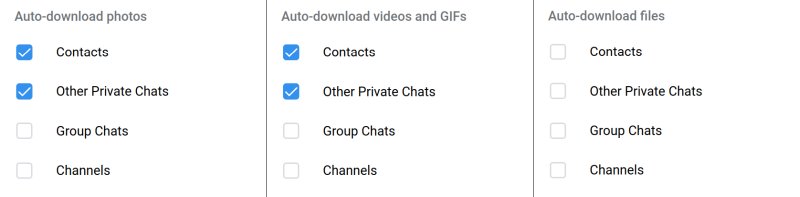
An example of data management - photos, videos, GIFs, and files - in a chat program.
An additional check you can do is to verify whether the media files contain all the bits and pieces you expect to find in said files. While this step requires some small technical expertise, it is not incredibly complex. You can use the ffprobe utility, part of the ffmpeg toolkit, to check what parts are bundled inside media files.
Most media files are containers. For instance, MP4 and MKV are merely containers inside which you will find the video stream, audio stream, subtitles, metadata, and other components. Thus, if you can use ffprobe to see what data you get. For example:
ffprobe file.mkv
You can then read the output, and see if everything looks fine. In other words, the media ought to contain the expected bits and pieces. If you discover odd results, you may have a malformed, corrupt or potentially dangerous file before you. Here's an example of an MP3 file probe:
...
Input #0, mp3, from 'Antonio Vivaldi - The Four Seasons.mp3':
Metadata:
major_brand : isom
minor_version : 512
compatible_brands: isomiso2avc1mp41
encoder : Lavf58.76.100
title : The Four Seasons
artist : Antonio Vivaldi
album : Cimento dell'Armonia e
dell'Invenzione
genre : Classical
date : 1725
track : 1
TRACKTOTAL : 1
Duration: 00:41:59.61, start: 0.025056, bitrate: 194 kb/s
Stream #0:0: Audio: mp3, 44100 Hz, stereo, fltp, 192 kb/s
Metadata:
encoder : Lavc58.13
Stream #0:1: Video: mjpeg (Baseline), yuvj420p(pc, bt470bg/unknown/unknown), 3402x3402 [SAR 72:72
DAR 1:1], 90k tbr, 90k tbn (attached pic)
Metadata:
comment : Other
...
You can see the music file has a single track, a single audio stream, some metadata, plus an embedded/attached picture, which means nice fancy art when you play the song. The music bitrate is a rather reasonable 192 Kb/s. This is a good indicator of what to expect from this file, and what it contains.
The ffmpeg/ffprobe set is available in most if not all Linux distributions, and it might even be installed by default, allowing you to run a quick check of your media. Security aside, ffprobe is useful, as it can tell you more information on your files, like bitrate, which codecs are used, and then some.
Non-default programs
I would like to provide you a short, non-exhaustive list of non-default applications for common file types. While the recommendation below may feel like 2005 security through obscurity, it's more than that. In many aspects, lots of less popular programs offer better, wider functionality than the well-known bunch. On top of that, you may actually gain some security, too.
As the vast majority of people run Windows as their desktop operating system, the list below will primarily focus on that. I also added Linux as this (relatively small-share) alternative can be, in the vast majority of cases, used freely and without any restrictions. This means you don't need to spend money buying additional hardware or software licenses to use Linux. This also makes it suitable for testing, virtualization, and other purposes, in addition to its rather robust built-in security mechanisms.
Please note my list isn't exhaustive by any means, nor does it cover every single option. Don't expect functional parity, for better or worse. There might be file format support issues, or conversion issues. Even if you can open certain files in different programs, there might be visual differences. You can visit Alternativesto for detailed information on numerous replacements for a huge number of programs.
| Program | Alternative (Windows) | Alternative (Linux) |
| Adobe Acrobat Reader | Foxit Reader, Sumatra PDF | Okular |
| Adobe Photoshop | GIMP | GIMP |
| Microsoft Office | LibreOffice, OnlyOffice | LibreOffice, OnlyOffice |
| Windows Media Player | VLC | VLC |
| Windows Notepad | Notepad++ | Geany, Kate, KWrite |
| Windows Photos | IrfanView | GwenView |
You can run Notepad++ and IrfanView in Linux using WINE. With superb results, mind.
Practical mitigations in common software
Let's also review some changes you can introduce to program settings, which might help reduce your exposure to potential problems and threats. Please note that not all options will be available in every program. The terminology may also be different. And if you turn off features, you will naturally reduce your functionality. But if you do not need certain things, or you prefer security over convenience, then you should consider hardening your applications.
| Product type | Mitigation |
| Office suite | Disable Macros
Disable remote content |
| PDF viewer | Disable Javascript (Actions)
Disable links Disable remote content Disable Web access Enabled restricted/protected view |
| Media player | Disable automatic metadata retrieval |
| Chat | Disable automatic downloads
Disable autoplay |
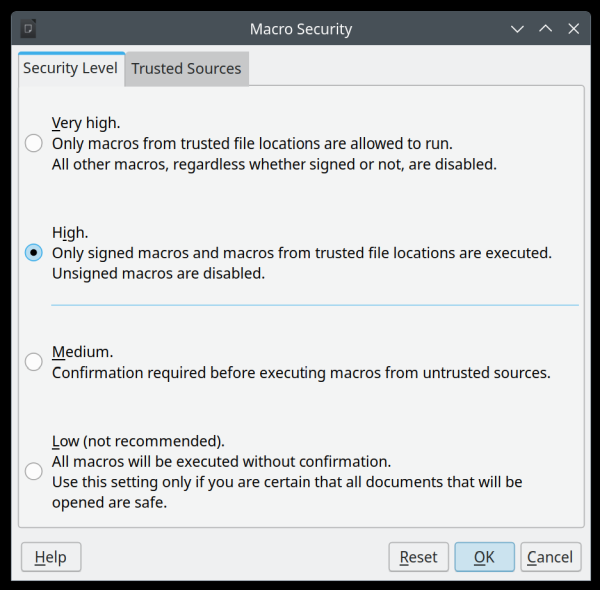
Macro security in LibreOffice.
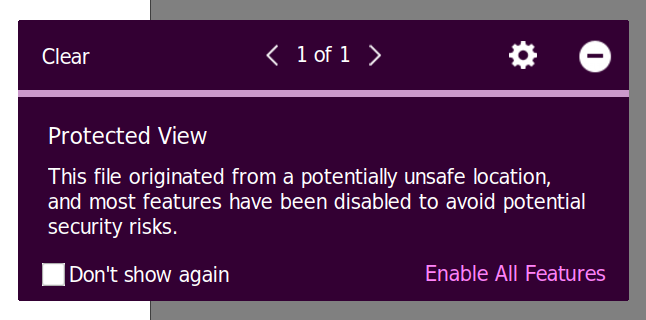
Protected View in Foxit Reader.
In addition to these changes, you can also introduce various execution mitigations that will make sure your programs do not misbehave. This is a complex area, but if done right, it will serve you majestically.
Use EMET (in older versions of Windows)
This lovely toolkit allows you to apply a range of memory mitigations and restriction to your software. You basically tell the system which calls or actions to allow or disallow. The beauty of the toolkit is that is does not discriminate between good or bad programs - it discriminates between good and bad actions. If a program tries to execute something that could trigger an exploit, it will fail, for whatever reason.

Use Exploit Protection (in Windows 10 onwards)
EMET was discontinued for Windows 10, and its functionality migrated into the Exploit Protection toolkit. For all practical purposes, the two are identical. The major difference is in the UI, and how easy it is to deploy and apply mitigations for programs. Please note that this toolkit may NOT work well with modern browsers, as they come with their own sandbox engines.

Use Linux sandboxing mechanisms
We mentioned these earlier. In addition to software testing, they offer practical day-to-day security. As you go on about your regular software business, should you encounter bugs, vulnerabilities, exploits, or other issues, having your programs isolated from the rest of the system can significantly reduce your exposure.
snap connections xyz
Interface
Plug
Slot
Notes
audio-playback
xyz:audio-playback :audio-playback
-
avahi-observe
xyz:avahi-observe -
-
browser-support
xyz:browser-sandbox :browser-support
-
calendar-service
xyz:calendar-service -
-
camera
xyz:camera -
-
content[gnome-46-2404]
xyz:gnome-46-2404 gnome-46-2404:gnome-46-2404 -
content[gpu-2404]
xyz:gpu-2404 mesa-2404:gpu-2404
-
...
Output for a snap showing all the different connections. You can connect/disconnect any one of these resources for any one of your installed snaps. This will naturally reduce functionality, and some programs may misbehave, crash or even refuse to run at all. But you may also gain some security, if you require it.
For instance:
sudo snap disconnect xyz:audio-playback
This will disable the snap's access to auto-playback functionality in the system.
Additional hardening and mitigations
There are a few more things to consider (we mentioned these briefly before):
- You can use Noscript Suite (NSS) to block cross-scripting attacks (XSS) on websites.
- You can use NSS to block remote fonts in Web pages.
- You can use NSS or UBlock Origin (UBO) to restrict browser LAN access (to your localhost ports).
Automatic updates (or rather, not)
Ugh. I've long long advocated against automatic updates. Back then, it was mostly due to quality problems that updates could bring in. Nowadays, the primary concern is in getting hit by supply-chain attacks. And quality, of course. That hasn't changed. My logic says that, for most categories of software, you should wait a little before applying any updates.
- Operating system level patches usually aren't that critical. Rarely, there will be one or two that mandates an immediate fix. But on the desktop, if your machine sits behind a firewall, most of the time you should be fine, and should let updates "rest" for a while before you use them.
- Browsers and chat programs are probably the only software that truly require "immediate" patching. In this case, if you use official software (like say Firefox, Chrome, Brave, Edge or similar), unless there are major breaches in the security protocols of these browser companies, you should be fine. The same applies to the chat software (like say WhatsApp or Telegram or Signal or such). However, browsers come with another risk. Extensions.
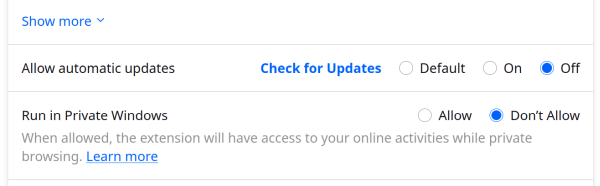
- While extensions offer excellent functionality - and sometimes security - if they get tampered with, you will automatically get malware into your browser. Consider the volume and sensitivity of information people use in their browsers, this can be a major security risks. It is also a risk with numerous precedents. Quite often, an extension owner will sell or transfer their ware to another entity, which can then potentially push malicious updates in a subsequent version. You have very little protection against this kind of problem. To avoid or minimize this risk, you may want to enable automatic extension updates only to add-ons that undergo human review. How do you spot those? Well, in Firefox, those are marked as Recommended. Firefox also lets you enable/disable updates on a per-extension basis. Such functionality may not be possible in other browsers without extensive changes, so you may have to live with the risk of automatic extension updates. Hence, use Firefox.
Kernel livepatching
Some flavors of Linux offer an additional advantage to everyday use - live kernel patching. You can apply updates to your system without rebooting. The tooling, if available and active, will deploy temporary fixes to your system until you can fully and properly update your machine. In the meantime, you will still be protected. The livepatching toolset will load per-problem patches on every boot, as needed.
In Ubuntu, you can activate livepatching either individually or as part of the larger Pro toolbox, which not only provides this functionality, but it also gives you an additional five years of application and system updates for your distribution, free of charge (for home users). This is available in all Ubuntu Long-Term Support (LTS) releases.
sudo pro status
SERVICE ENTITLED
STATUS DESCRIPTION
anbox-cloud yes
disabled Scalable Android in the cloud
esm-apps yes
enabled ESM for Applications
esm-infra yes
enabled ESM for Infrastructure
...
livepatch yes
enabled Canonical Livepatch service
...
System imaging
Regardless of how careful you are, I would recommend creating a system image of your host every few weeks, and then whenever you intend to make a big change to your machine. Best of all, you can use phenomenal free tools like CloneZilla, RescueZilla or Macrium Reflect to generate a complete copy of your system before running updates. Thus, if anything goes bad, simply revert to the last snapshot. Job done.


Smartphone security
The typical mobile device in the hands of an average user has revolutionized the computing world, for better or worse. The security model required for the smartphone is somewhat different than the desktop, although most practices still apply. That said, take into account the following:
- Most Android and almost all iOS (iPhone) devices are not rooted. The user has limited control over the operating system and the bootloader, and can only make some small, symbolic changes to the UI and the application ecosystem. This means that security issues are usually less severe, but also harder to detect or understand, and require "faith" that the operating system can handle or remove potential problems. That said, the baseline security is reasonably high.
- Smartphone security issues arise from various factors, including outdated firmware and system patching. This used to be a major issue in the past, with many smartphone vendors offering only a short update cycle. After a couple of years, the phones would no longer be patched. Nowadays, more and more vendors pledge longer updates. From my experience, you will have 7+ years with Google and Fairphone, 5+ years with Apple and Samsung. Fairphone may even give you as many as 10 years of updates, while in practicle, Apple will offer at least five years of patching from the last sale of a given model. Please take my numbers with a grain of salt, and consult the relevant terms for each and any vendor.
- Most smartphone users install apps from official vetted stores, similar to Linux repositories and/or stores. You can do some "sideloading" in a manner similar to how Windows users typically obtain and run their software. The use of both channels require an enormous amount of trust. You need to be sure that the app you want to install is safe, otherwise the robust system mechanism becomes moot.
How to find "safe" apps
This is quite hard, perhaps even harder than the desktop. If you run a search for a specific category, you will often get dozens if not hundreds of app results. The top choice may be a sponsored option, not necessarily what you need. And even if you find what you like, you still need to be extra diligent.
- If you know the app name, correlate and verify with the official homepage (similar to the desktop practices).
- Check developer name and details in the store, and compare to the official homepage.
- Check and read the reviews. This is no different than finding items to buy in online shops.
If you're not familiar with the app, and you would simply like to "try" it, then:
- Both the Play Store and the App Store offer app scanning and checks. On its own this is a good start, but no guarantee to the safety or security of the software, or future updates.
- See if the vendor offers the installer on their homepage. If it's available, scan it through VirusTotal.
- Check if the app contains ads. My recommendation is to strongly avoid apps with ads.
- Once the app is installed, minimize its permissions before running it the first time.
- Once run, beware any app that asks for lots of credentials.
Android specific tweaks
The one big problem with Android security is that there isn't one Android. Every vendor does things ever so slightly differently. For instance, Samsung introduced many of the Android Advanced Protection in version 15, whereas most of these mitigations were formally shown in version 16. Then, some vendors may add their own software and tools, and occasionally, you may even have to use their account to get access to these.
- Use my reasonable security and privacy guide as a baseline.
- Disable permissions for anything you don't need or actively use.
- Remove or disable any apps you don't want or need. Most of the time, you can do the same thing through your browser, with the added benefit of sandboxing and adblocking. For instance, weather. You don't need an app for that. In general, very few apps offer any direct functionality benefit.
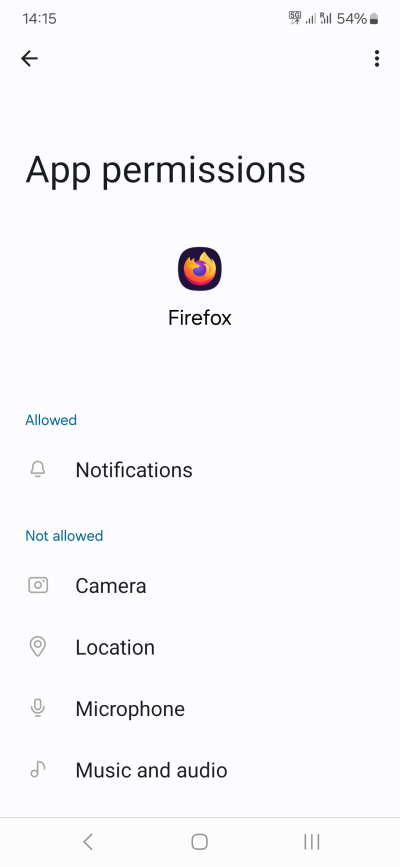
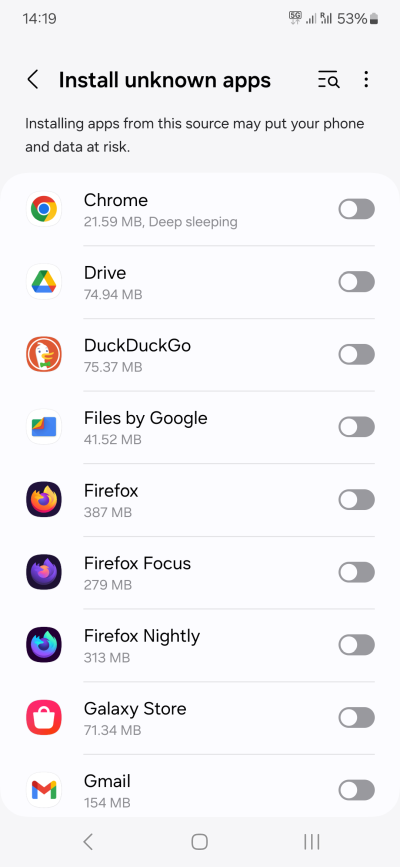
- Use Firefox + UBO as your browser.
- Some security features and options are specific to Chrome (if you want to use it).
- Google Play Store can perform basic security app checks. Use at your own discretion, in addition to the app vetting process I outlined earlier.
- Disable auto-download and autoplay wherever possible.
- Disable app auto-updates to avoid the potential ownership change, supply chain poisoning and similar issues. You can perform updates manually at a reasonable frequency. This will allow the Play Store to catch up with any potential threats. While this offers no guarantee, it also means you're not just blindly accepting any which update that crops up.
- Reduce the functionality that non-contacts can use, e.g.: if they can invite you to a video call or such.
- Use apps without an account, and use the search without signing in, unless you are keen on personalization. This way, there will be less personal data available inside apps should any sort of security problem occur, and you will also reduce any account-related issues (like say cookie or session theft).
iOS (iPhone) specific tweaks
By and large, the iOS security model is excellent. However, you can improve it:
- Use the Lockdown Mode. Not only is it useful for security, it's also a great anti-annoyance feature.
- Use the Safari browser, with an adblocker, of course. UBO Lite is an excellent choice.
- If you want a different browser and adblocking, Brave comes with its Shields adblocker, as mentioned earlier.


Cloud security
Do you use cloud storage? Mkay. Well, there are a few things you should take into account:
- You have zero control over someone else's compute estate. For whatever reason, you may lose access to your cloud, whether due to network issues, account problems, billing, technical errors, availability of the online resources, and then some. In other words, cloud should be a backup, never the source.
- Different clouds have different shapes - policies, that is. Some may have good encryption, some less so. Some may scan your uploaded content, some may not. Some may reside in more privacy-focused jurisdictions. You should carefully examine how these suit you. By and large, if you upload your files as is, you can or may assume that technically, they will also be accessible and readable to the cloud provider.
- If you want to make sure your data is "secure", you may want to consider putting your files into an encrypted archive before uploading it to the cloud. That way, if there's a breach or any sort of problem, to anyone without the right password, your data will just be a big long binary of zeroes and ones.
Furthermore, I would advise:
- Do not upload photos to your cloud storage, not without encryption. Yes, this is convenient, but it may also lead to increased cost (due to storage requirements), higher dependency on the cloud provider, and big potential problems in case of a breach. Lots of people also use cloud as their only storage for photos.
- If you are uploading personal documents, use a similar policy as above.
- If you need to share personal documents with other people, use named contacts rather than sharable links, to reduce the risk of accidental access.
- If you are backing up settings from various devices, like smartphones, make sure the cloud storage offers end-to-end encryption, so that only you can access said settings if and when required. If the encryption isn't available, consider carefully what sort of you want to upload, if any. For example, Wi-Fi passwords, account passwords, 2FA codes, contacts, medical information, and so on. The same also applies to any chat program databases, which contain loads and loads of personal data.
Networking devices and gadgets
It is virtually impossible to truly cover all and every angle of this aspect of security. You simply need to remember, it doesn't matter what it looks like, it's still a computer. Your router is a computer, your smart watch, if you happen to wear one, also qualifies. Each and every system, especially those with network access, require diligence and care to use correctly.
I will only briefly address the security aspects here:
- Change the defaults - username, password, whatever, don't use whatever comes with the box.
- If you can, disable remote access, remote login or any functionality of such kind, unless you need it.
- Disable automatic management of network ports, like say UPnP, and manually provide access when needed.
- Disable file sharing, media access and similar conveniences if you don't use them.
- Avoid using apps to connect to gadgets (if possible). Use the local Web management interface, and configure systems and tools that way. You both reduce complexity and reliance on additional devices for whatever's inside your home, plus quite often, apps require user registration and may also enable remote access to devices. The safest method is management via LAN IP addresses, wherever possible.
- Automatic updates? Same logic as earlier. At the very least, back up your existing firmware and settings before making any changes. It is not unusual for "smart" devices to bring in "improvements" that ruin usability, regardless of the security aspect.
- If it requires "cloud" to function, it's not really yours - you are at the mercy of whoever controls the cloud.
- Try to choose devices with long support and patching, so you don't end up with expensive outdated bricks all too soon.
Virtual Private Networks (VPN)
The purpose of VPN is to establish secure data tunnels over potentially insecure networks. This has an added benefit of privacy online, in that you may somewhat reduce your online profile. But at the same time, you could raise your profile by making yourself "more unique" by using certain tools and practices that no one does. As a banal example, if you're the only person in your apartment building to leave the lights turned on at a certain time of the day, you stand out against the rest of the people who have less obvious habits.
VPN can be used to establish secure data tunnels, but they don't directly increase online security. Some VPN tools do have DNS blacklists for ads and malware and similar, which, if used, can somewhat potentially reduce online risks. But on its own, VPN will do nothing.
If you want or need to use VPN, you need to be aware that:
- VPN traffic is visible to the service operator. You and whoever routes the traffic for you will see and know what sites you are visiting. This implies an enormous amount of trust. It is very hard finding a reputable and trustworthy VPN.
- VPN need to be configured correctly.
- VPN usually have multiple modes of work, including system startup, traffic blocking if not connected or disconnected due to a network glitch, split tunneling, access to local network, and more. You need to understand these aspects before you can use the tools effectively.
- Some VPN tools may leak data, and some software may leak data, reducing the privacy value of such tools.
- Some online content may not be accessible (or conversely, will be accessible) when using VPN.
- On non-rooted smartphones, VPN connections usually are not "watertight". The underlying system will have access outside the tunnel, and will establish periodic connectivity checks for its own purposes.
Password management
Earlier, I mentioned not using password managers inside browsers. However, I do believe that one should maintain a good password routine. This requires discipline, including:
- Passwords should be long, memorable and unique per site or service.
- Save your passwords into an offline, local password manager like KeePass. This utility is available for numerous operating systems, including Windows and Linux. The offline nature and easy portability of the key file allows you to have multiple secure backups.
- If you do not wish to use a password manager, write your passwords on a piece of paper. This is more secure than reusing short passwords because you cannot be bothered keeping a detailed list. The likelihood of anyone breaking into your home and stealing a piece of A4 paper with some text on it is virtually zero, whereas the chances of online account compromise is relatively high.
- You should use Two Factor Authentication (2FA) alongside password wherever possible. I would recommend using an authentication program or app to store 2FA seeds and generate one-time tokens when needed. I would recommend at least two independent copies, meaning two devices that can generate such codes. Typically, people use smartphones and relevant apps for this purpose, but it is not a requirement. You simply need a device that supports the relevant one-time token protocol.
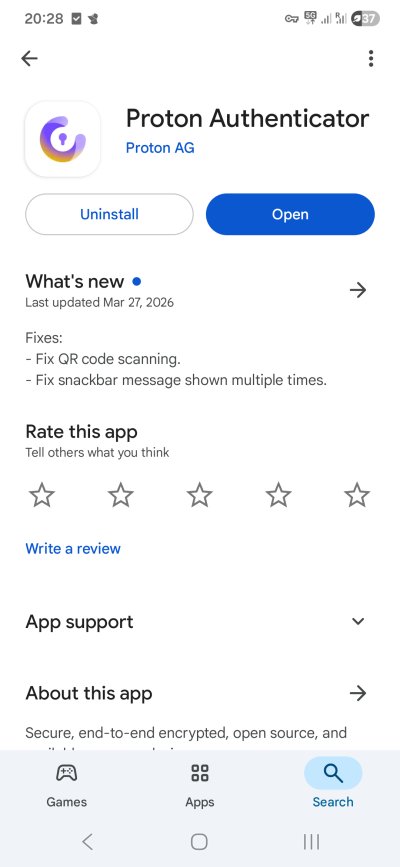
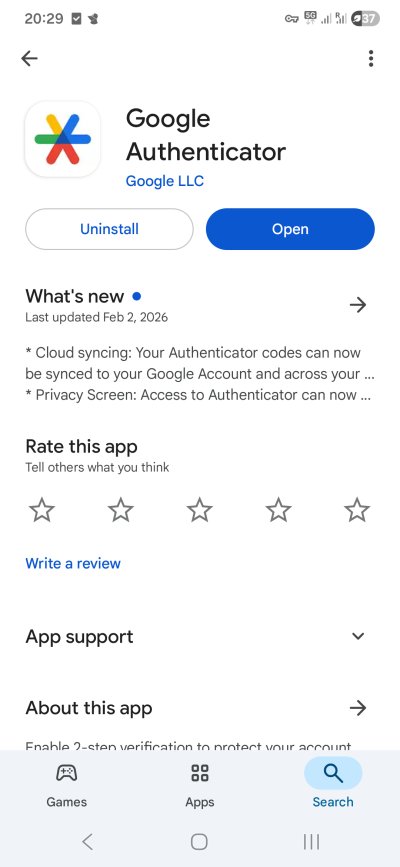
- As primary choice, I would recommend Proton Authenticator, as it does not rely on Google Play Services on Android. As secondary choice, I would suggest Google Authenticator. For the latter, if you sign into the app, your codes will be backed up online. If you do not wish this functionality, use the Google Authenticator without an account. Both these programs allow you to easily export codes, and both offer PIN protection for the main interface. Furthermore, both require accurate device time (sync) to offer correct codes in any 30-second window.
What about passkeys?
Recently, there has been a lot of chatter about the relatively new concept: passkeys. I am against their use in the home environment, because their curent implementations are cumbersome, almost always require the use of smartphones, and can lead to significant complications if the relevant device isn't available. In many ways, passkeys are tied to specific hardware. This makes possible phishing and account theft harder, which is why they could make sense for people in sensitive professions, or for use in the corporate environment. For the typical home user, though, the cons outweigh the benefits.
And I guess that's enough security for one article ...
Conclusion
Hopefully, this article finds you educated, elucidated and not too confused. When I started writing it, I wasn't quite sure how deeply to go into various topics, and how many of those to bring up. There's still a lot more that can be said, both about new concepts and domains of security, and about the ones already listed. I tried to strike a balance between interesting, useful, not too paranoid, and practical.
Security in 2026 isn't that different from say 10-20 years ago. Then again, it is. There's some difference in the use of new media, as in devices and apps. However, olden phones also had connectivity, and there were all sorts of messenger programs, similar to the current crop. No, the really big differentiating factor is in the sheer, imploding complexity of the "modern" Internet, which can no longer cope with its size. When a major chunk of all traffic is pure spam and AI-generated trash, the value proposition simply nosedives. At that point, you turn security into garbage filtering, and you go from searching for suspicious data to searching for non-suspicious data. There. Perhaps the best lesson I can give you. Treat the "modern" Web as one giant infection. Be skeptical of everything and anything and anyone. Not fun, but fun ended a decade ago or so. And with these optimistic words, we must end.
Cheers.